To use Gemini 4 Argon in a Python application, one would need an API key, a Python SDK, and a request that complies with Google’s current API requirements.
This article will explain every step, from installation to obtaining a response and possible errors during the request.
One will also learn to work with API keys and model responses, including a useful Python function that can be reused. If you are still learning about the model itself, start with our guide to Gemini 4 Argon features and practical uses.
Important: The Gemini 4 Argon Python API Example uses Google’s google-genai Python SDK and the model identifier gemini-4-argon as a placeholder to verify against your account.
Confirm the exact model ID, availability, and supported methods in the official Gemini API documentation before running the code.
Table of Contents
What Do You Need Before Using the Gemini 4 Argon Python API?
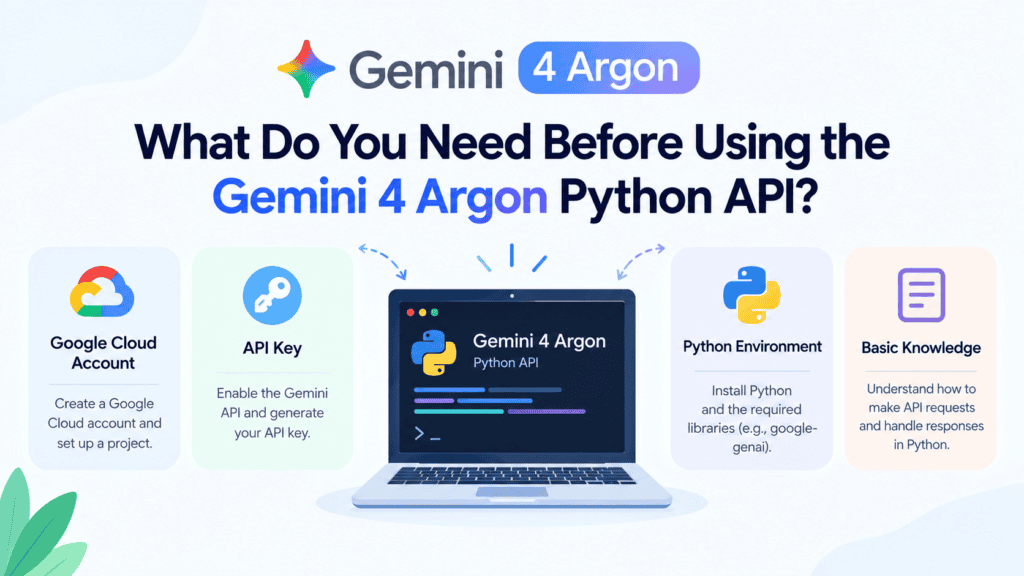
Before writing your first API request, prepare the following:
- Python: A supported Python version installed on your computer.
- Google AI Studio access: Use an account and project that can access the required model.
- API key: Generate a key through Google’s supported API setup process.
- Python SDK: Install the google-genai package.
- Basic Python knowledge: You should be comfortable running Python scripts and installing packages.
You do not need to build a complete application before testing the API. Start with a small script, confirm that the model responds correctly, and then add more functionality.
Step 1: Get Your Gemini API Key
An API key allows your Python application to authenticate with the Gemini API. Without valid credentials, the service cannot process your request.
Follow these steps:
- Open Google AI Studio.
- Sign in with the account connected to your intended project.
- Follow the API key setup instructions.
- Create or select a project with access to the Gemini API.
- Copy the key and store it securely.
Keep your API key private. Do not paste it into public code repositories, share it in screenshots, or include it in a file that other people can download.
Store Your API Key as an Environment Variable
Instead of writing the key directly into your Python script, save it as an environment variable.
On Windows PowerShell, you can set it for the current terminal session:
$env:GEMINI_API_KEY=”YOUR_API_KEY”
On macOS or Linux, use:
export GEMINI_API_KEY=”YOUR_API_KEY”
Replace YOUR_API_KEY with your actual key. These commands set the variable for the current terminal session; they do not permanently configure it for every future session.
Your Python script can now read the key without placing the secret directly in the source code.
Step 2: Install the Gemini Python SDK
Google provides the google-genai Python package for working with the Gemini API.
Open your terminal and run:
python -m pip install -U google-genai
This command installs or updates the package in the Python environment associated with your python command.
If you are working inside a virtual environment, activate it before installing the package. This helps keep your project’s dependencies separate from those of other applications.
To check that Python can find the package, run:
python -c “from google import genai; print(‘SDK imported successfully’)”
If the command prints the confirmation message, the package import is working.
If it fails, check that you installed the package in the same environment you are using to run your script.
Step 3: Make Your First Gemini 4 Argon API Request in Python
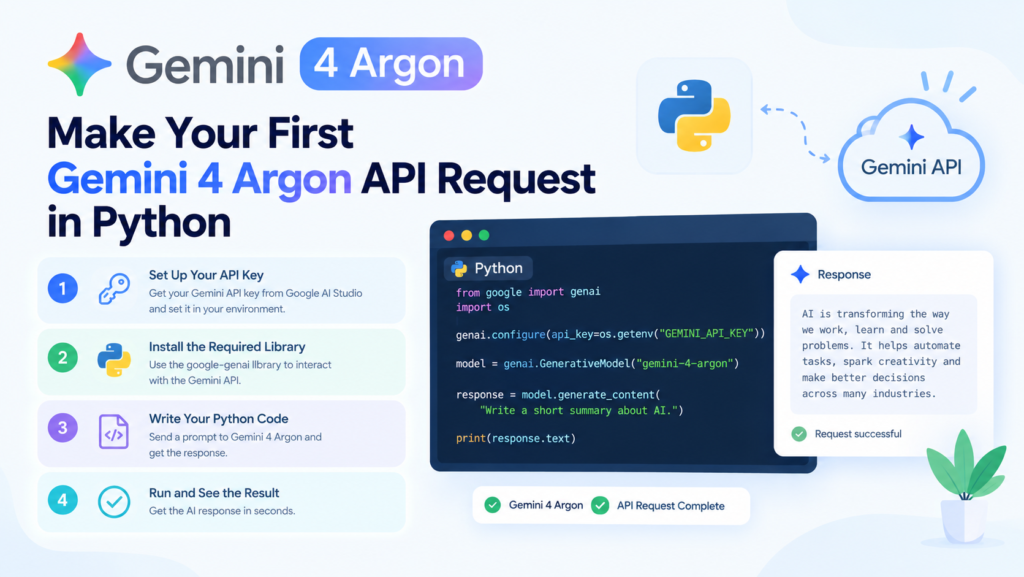
Now you can create a basic Python script that sends a prompt to the model and prints its response.
Create a file named gemini_argon_example.py and add the following code:
import os
from google import genai
api_key = os.environ.get(“GEMINI_API_KEY”)
if not api_key:
raise RuntimeError(
“GEMINI_API_KEY is missing. Set it before running this script.”
)
client = genai.Client(api_key=api_key)
MODEL_ID = “gemini-4-argon”
prompt = “””
Explain how a Python API request works.
Use simple language and give one short example.
“””
response = client.models.generate_content(
model=MODEL_ID,
contents=prompt,
)
print(response.text)
How Does This Code Work?
Each part of the script has a specific purpose.
- os.environ.get() reads the API key from your environment.
- genai.Client() creates the API client.
- MODEL_ID stores the model identifier in one place.
- generate_content() sends your prompt to the selected model.
- response.text prints the text returned by the SDK when available.
This way you can update the model ID if Google changes it or you decide to switch to another available model.
Before running the example: Confirm that your project supports the model ID and the generate_content() method. If your selected model has a different endpoint or request method, make sure to consult the official documentation for that particular gemini model, as they may have different requirements than the default one.
Run the Python Script
Save the file and execute:
python gemini_argon_example.py
If your credentials, model ID, and API request are valid, the script should print the model’s response.
Note that the actual response will vary depending on the prompt, model version and generation settings. Successful API call only proves that the connection is working, but does not indicate if the returned data is factually accurate.
Step 4: Understand the API Response
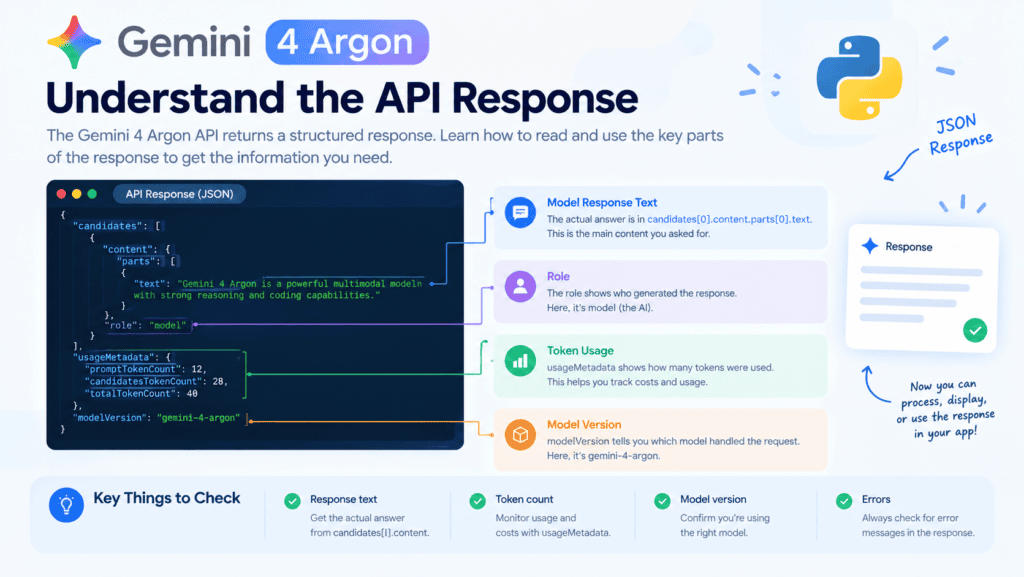
When the API request is successful, the SDK returns the response, which your application can use to present the results, analyze the text, or send it to another service.
For a basic text-generation request, response.text is a convenient way to access the generated text when the response contains text.
For example:
answer = response.text
if answer:
print(“Model response:”)
print(answer)
else:
print(“No text response was returned.”)
This check is useful because an application should not assume that every response contains non-empty text.
To implement more complex applications, you might need to consume additional response fields, such as usage, finish reasons, or structured output. Each API method and SDK version expose different response fields.
How to Ask for a More Structured Answer
A clear prompt can make a response easier to use in your application.
For example:
prompt = “””
Explain API authentication.
Return:
1. A short definition
2. Three common authentication mistakes
3. One practical recommendation
“””
This encourages the model to follow a consistent structure. However, instructions in a prompt do not guarantee that every response will follow the requested format exactly.
If your application requires strict machine-readable output, use a supported structured-output feature and validate the result before processing it.
Step 5: Create a Reusable Python Function
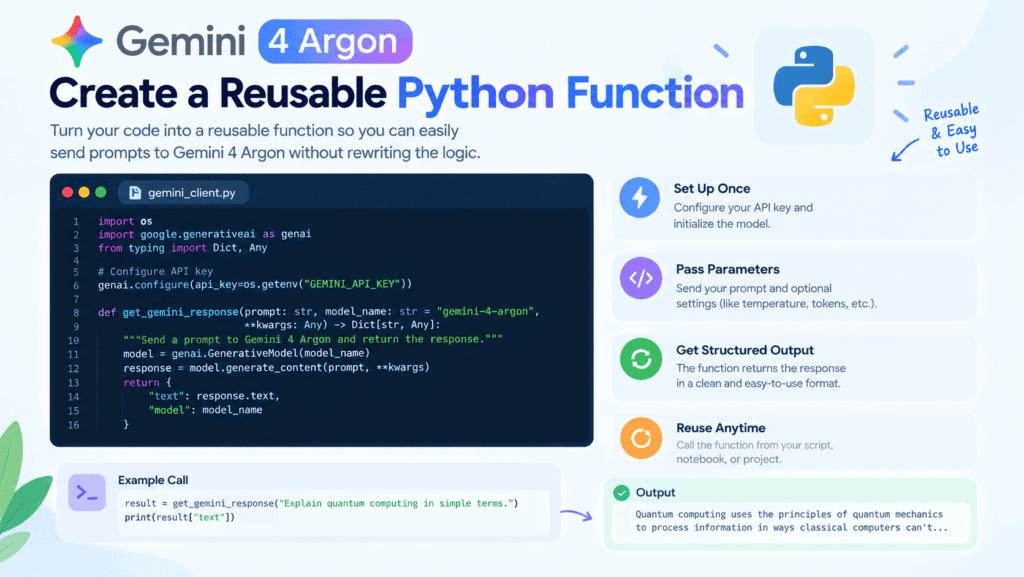
Once your first request works, move the API call into a function. This makes it easier to reuse the same logic in a web application, command-line tool, or internal automation.
Here is a simple example:
import os
from google import genai
MODEL_ID = “gemini-4-argon”
def generate_answer(prompt: str) -> str:
api_key = os.environ.get(“GEMINI_API_KEY”)
if not api_key:
raise RuntimeError(“GEMINI_API_KEY is not configured.”)
client = genai.Client(api_key=api_key)
response = client.models.generate_content(
model=MODEL_ID,
contents=prompt,
)
answer = response.text
if not answer:
raise ValueError(“The API returned no text response.”)
return answer
if __name__ == “__main__”:
question = “Give three tips for writing readable Python code.”
try:
result = generate_answer(question)
print(result)
except Exception as error:
print(f”Request failed: {error}”)
This example checks for missing credentials and empty responses. It also catches exceptions at the point where the script runs.
For a production application, it’s best to avoid showing users raw exception details. Instead, you can log the information your development team needs to know, sanitize any sensitive data, and show a simple end user message.
You might want to reuse the same client for the lifetime of the application, rather than creating and destroying clients for every request. The SDK provides current guidance on client and resource lifecycle management.
Step 6: Handle Gemini 4 Argon API Errors
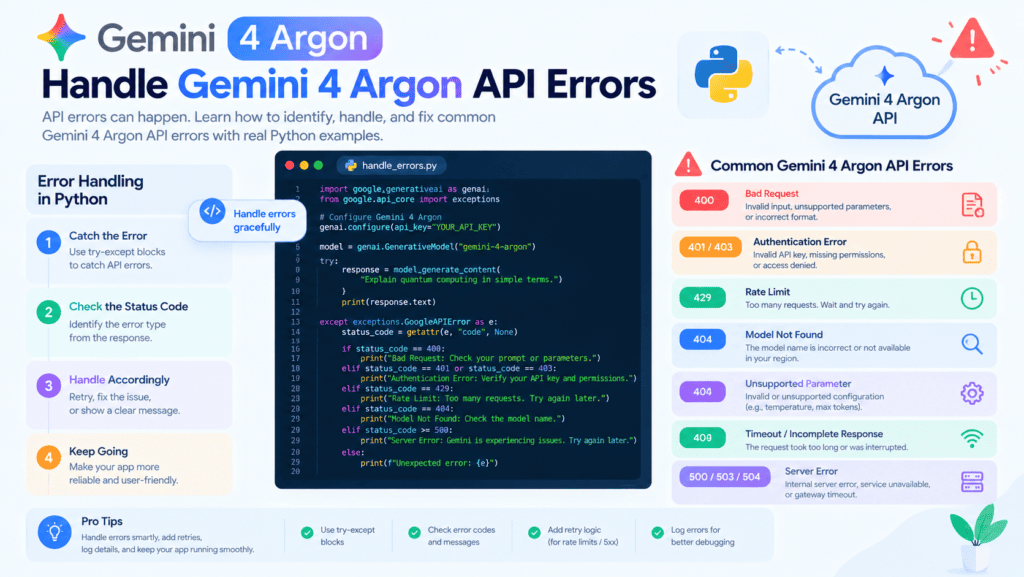
A Python API request may fail even when the script is syntactically correct. Common causes include invalid credentials, insufficient permissions, an incorrect model ID, request limits, unsupported parameters, and temporary service problems.
Start by identifying the error type before changing your code.
| Error or problem | What it may mean | What to check |
| Authentication failure | The API key is missing, invalid, or not accepted | Confirm the key and project configuration |
| Permission error | Your account or project lacks the required access | Check permissions and model availability |
| Model not found | The model ID or endpoint may be incorrect | Verify the exact model identifier |
| Rate limit | The request exceeded an applicable quota or limit | Review usage and retry guidance |
| Invalid request | A parameter or request format is unsupported | Compare your request with the current API documentation |
| Server or network failure | The service or connection may be temporarily unavailable | Check the error details and retry only when appropriate |
Do not automatically retry every failed request. An invalid parameter usually requires a code change, while a temporary service error may be worth retrying.
For a deeper troubleshooting guide, see Gemini 4 Argon API errors and fixes.
Add Basic Error Handling to Your Python Script
The following example shows how to catch a failed request without exposing credentials:
import os
from google import genai
api_key = os.environ.get(“GEMINI_API_KEY”)
if not api_key:
raise RuntimeError(“GEMINI_API_KEY is not configured.”)
client = genai.Client(api_key=api_key)
try:
response = client.models.generate_content(
model=”gemini-4-argon”,
contents=”Explain Python functions in simple terms.”,
)
if response.text:
print(response.text)
else:
print(“The request completed without a text response.”)
except Exception:
print(
“The API request failed. Check your credentials, “
“model ID, request settings, and error logs.”
)
This is a basic example, not a complete production error-handling system. For production use: treat documented SDK exceptions as distinct cases so that you can differentiate between authentication failures, invalid requests, quota errors and temporary service issues.
Make sure logs are useful but safe: never log API keys, or other user-provided content that might contain secrets.
Step 7: Estimate API Costs Before Building Your Application
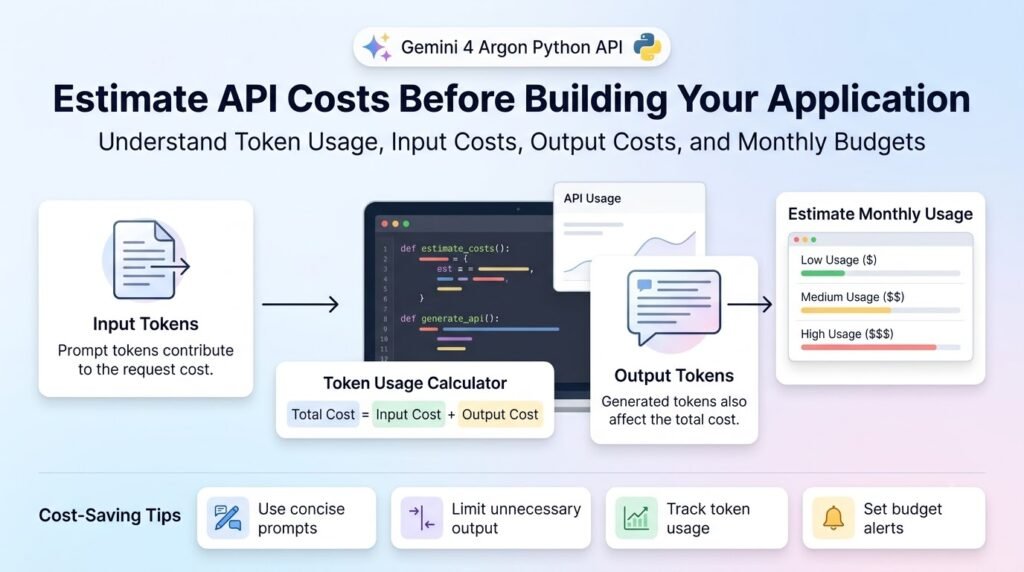
The use of API is usually billed according to the pricing policy of the respective plan and not a fixed monthly cost. The calculation is based on several factors including input tokens, output tokens, caching, and applicable terms for each project.
A token is a small unit of text or other content processed by a model. A long prompt, a large document, and a lengthy response can consume more tokens than a short question.
To estimate your application’s costs:
- Check the model’s current input and output rates.
- Estimate how many tokens each request will use.
- Multiply those amounts by the expected number of requests.
- Account for eligible caching or other applicable pricing rules.
- Test your real prompts and check actual usage.
Use Google’s Gemini API pricing documentation to find out current prices and calculate your spending before sending a single request.
Do not assume that the cost of a consumer subscription covers API requests. Consumer plans and developer API billing may be separate.
For a new application, begin with a small number of representative tests. Evaluate the usage before scaling the volume of requests or deploying the app in production.
Step 8: Follow These Best Practices for Gemini 4 Argon API Integration
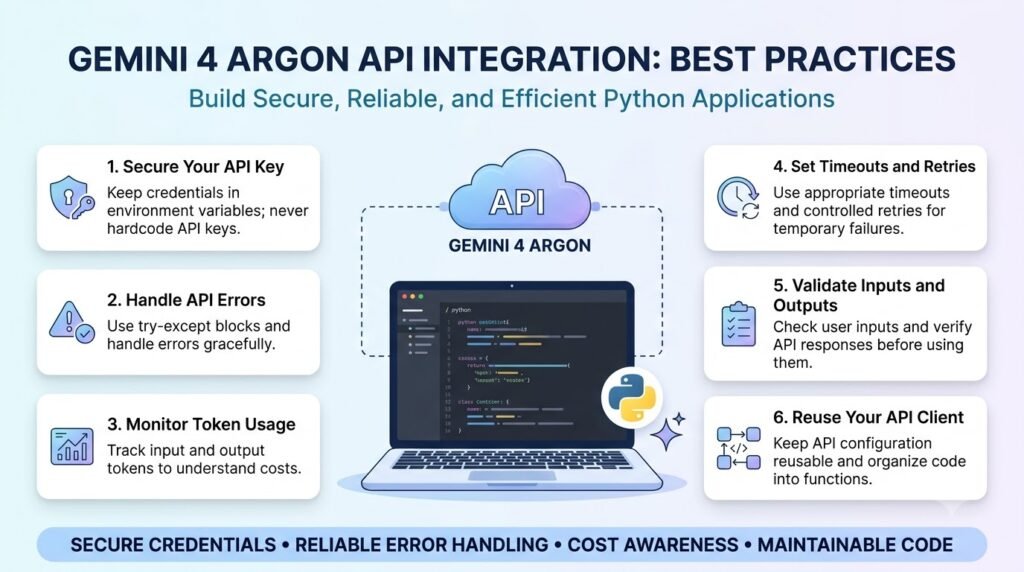
Getting a response from the API is only the first step. A dependable integration also requires thoughtful security, testing, monitoring, and response validation.
Protect Your API Key
Store credentials in environment variables or a suitable secret-management system. Never commit keys to git repositories, put them in frontend code, or expose them in public support requests.
If a key is exposed, follow the provider’s procedure to revoke or replace it.
Validate the Model’s Output
Do not treat generated text as automatically correct. Verify important facts, check code before executing it, and validate any structured response before passing it to another system.
For research or publishing tasks, our guide on fact-checking AI-generated answers before publishing explains how to verify claims against reliable sources.
Test With Realistic Prompts
A single successful request does not prove that your application will work for every input. Test short prompts, long prompts, empty inputs, unexpected content, and scenarios where the model might not return the requested format.
Capture usage and performance metrics without exposing potentially sensitive information.
Use Retries Carefully
Some errors are transient and can be retried, however, excessive retries or improper error handling may incur additional costs and/or fail to address the root cause.
See the retry recommendations for the applicable error. Implement a retry limit with an appropriate interval, and avoid retrying operations that have the potential to cause unintended side effects.
Compare Results When Accuracy Matters
For important coding or research work, compare outputs from more than one model and verify the findings independently. Different models can raise different concerns, but consensus doesn’t always mean they’re right.
For example, a structured code review workflow using multiple AI models can help you examine security, performance, and maintainability separately.
AiZolo can also help you compare results from multiple AI models in the same workspace. This can be helpful in critiquing the results of multiple models at the same time, while still being able to analyze key claims in light of the source material.
Common Mistakes to Avoid
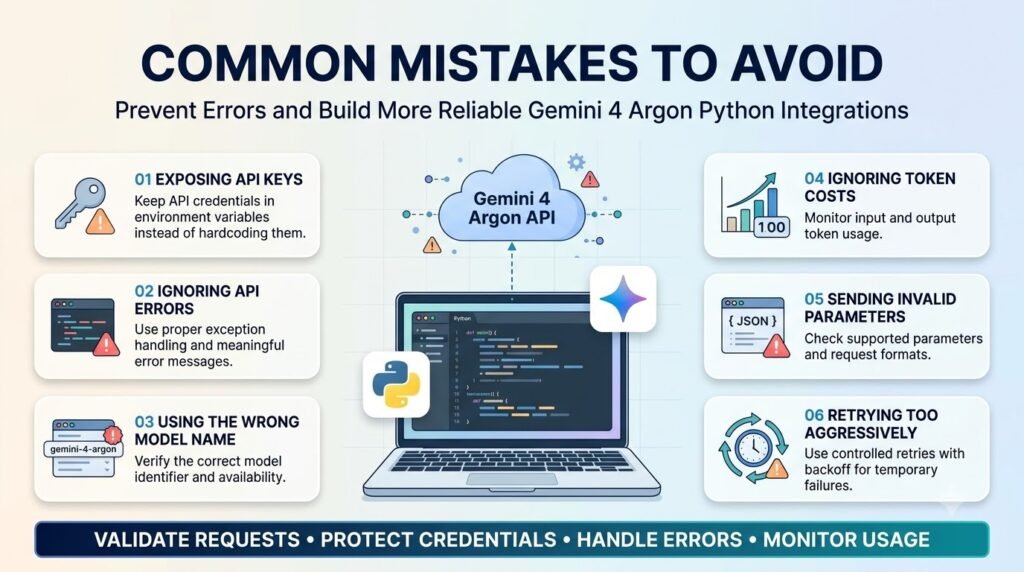
When building a Gemini 4 Argon Python integration, watch out for these common mistakes:
- Using an unverified model ID: Confirm the exact identifier available to your project.
- Hardcoding the API key: Read credentials from a secure configuration source.
- Assuming every response contains text: Check the response before using it.
- Ignoring usage limits:Monitoring Requests and Tokens.
- Retrying every error: Correcting, not repeating, erroneous requests.
- Skipping output validation: Validating the result before using it downstream.
- Using outdated examples: Checking that the SDK version and request method are up-to-date.
Avoiding these pitfalls will simplify support and debugging of your integration.
Frequently Asked Questions
1. How do I use Gemini 4 Argon with Python?
Install Google’s google-genai package, configure an API key, create a client, and send a prompt using a supported model and API method. Confirm the exact Gemini 4 Argon model ID and its availability in your project before running the example, because model access and API requirements can change.
2. Which Python SDK should I use for the Gemini API?
Google’s google-genai package is the Python SDK used in this tutorial. Install it with python -m pip install -U google-genai, then follow the current documentation for authentication and supported request methods. Keep the SDK updated and test your code when changing versions to catch compatibility issues.
3. How do I get a Gemini API key?
Use Google AI Studio and follow its API key setup instructions for your project. Store the resulting key in an environment variable or a secret-management system instead of writing it directly into your Python file. Also confirm that your project has access to the model and that API usage is configured correctly.
4. Why is my Gemini 4 Argon API request failing?
Common causes include an invalid API key, insufficient permissions, an incorrect model ID, unsupported request parameters, rate limits, or temporary service issues. Read the error details, verify your configuration, and test a minimal request. If the problem persists, use the relevant troubleshooting steps rather than retrying every failed request automatically.
5. Is the Gemini API free to use?
API access and pricing depend on the model, account, and applicable usage terms. Do not assume that a consumer Gemini subscription includes API usage. Check the official Gemini API pricing page for current input and output rates, any applicable free usage limits, and billing requirements before deploying your application.
6. Can I use Gemini 4 Argon in a production Python application?
Potentially, provided the model is available for your project and supports the API method your application needs. Before production use, test authentication, error handling, usage limits, response validation, logging, and costs.
Also check the provider’s current availability and service terms, and keep sensitive data and credentials protected.
7. How can I make Gemini API responses more reliable?
Use clear prompts, validate outputs, and test the application with realistic inputs. For important research or coding tasks, compare results where useful and verify critical claims against trusted sources.
Multiple AI responses can reveal disagreements, but they are not a replacement for independent testing or human review.
Conclusion
Using Gemini 4 Argon with Python starts with a few practical steps: configure an API key, install the Google GenAI SDK, verify the model ID, send a prompt, and process the response.
Once the basic request works, build on it with error handling, secure credential management, usage monitoring, and output validation. These practices help turn a simple API test into a more dependable application.
Before deploying your integration, check Google’s current documentation for model availability, supported request methods, and pricing. A working example is a useful starting point, but testing and verification are essential for real applications.
About the Author
Anshika Verma is a content researcher and writer at AiZolo who focuses on AI tools, AI models, and practical technology workflows. Her content helps readers understand new AI capabilities and apply them to research, coding, and everyday work.