
Table of Contents
Introduction
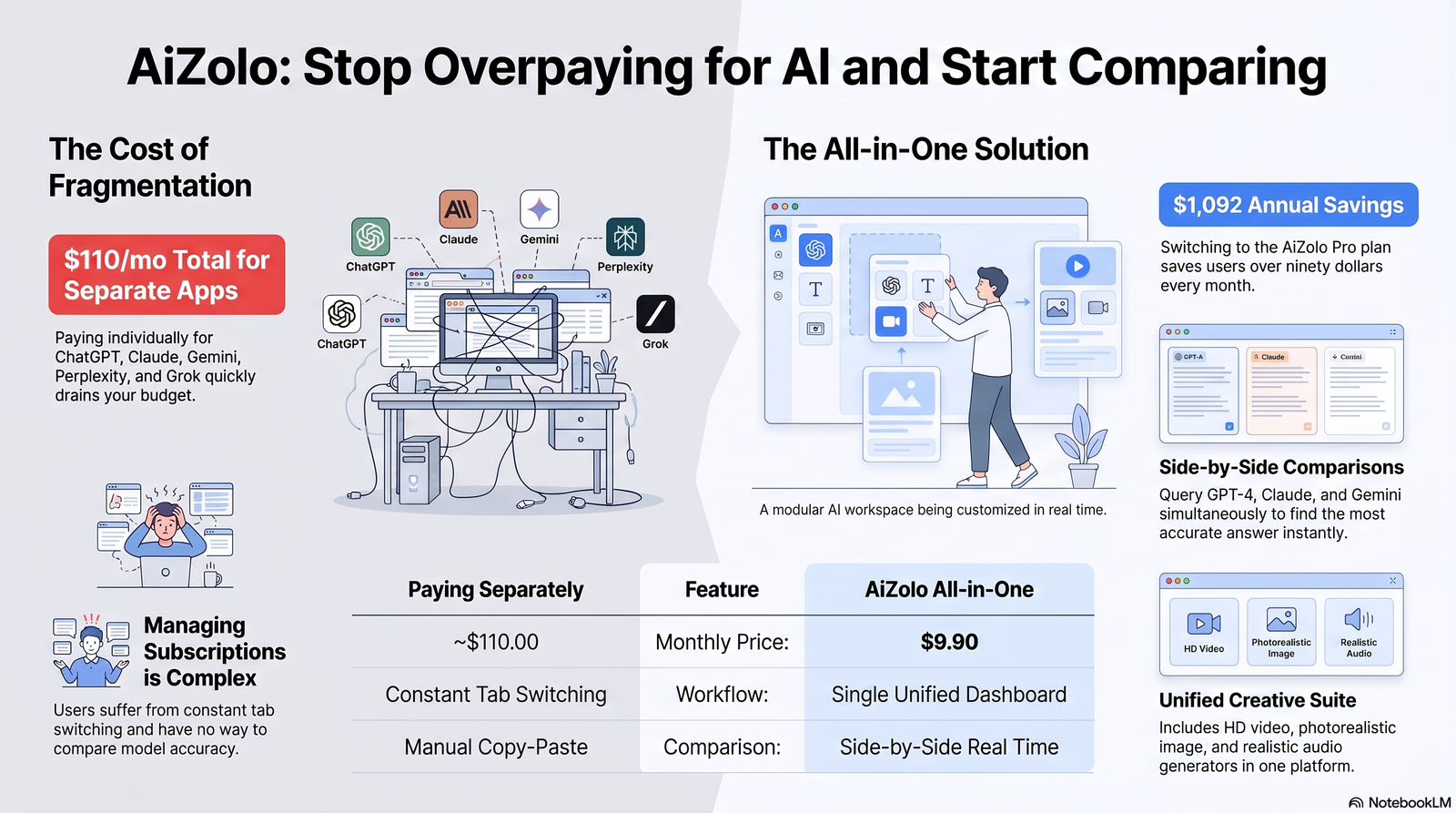
A drag and drop AI workspace is a visual environment where you arrange panels, agents, data connections, and automations on a canvas instead of writing code.
Drag and drop AI workspace customization features are the specific tools inside that environment—layout controls, modular widgets, workflow canvases, and configuration panels—that let a team reshape the workspace around how they actually work.
Platforms like Aizolo take this a step further by allowing users to personalize their AI workspace with flexible drag-and-drop components, making it easier to organize tools, automate workflows, and create a setup tailored to individual or team productivity.
This matters because most teams are not developers. They need software that adapts to their process, not the other way around.
This guide explains what these features are, how they work, where they genuinely help, where they fall short, and how to evaluate a platform before you commit budget and workflows to it.
We looked at how current market-leading visual builders and workspace platforms describe and document their own customization capabilities, and cross-checked patterns across several independent 2026 buyer’s-guide reviews, rather than relying on any single vendor’s marketing copy.
What Are Drag and Drop AI Workspace Customization Features?
At a basic level, “drag and drop” means moving an element — a card, a block, a node, a widget — from one place to another using a mouse or touch gesture, without writing code to reposition it.
An “AI workspace” is the broader environment: a dashboard, canvas, or workbench where you build, run, and monitor AI-assisted work such as chatbots, agents, automations, or generated content.
“Customization features” are the specific controls that let you reshape that environment: adding or removing panels, rearranging a canvas, connecting data sources, setting permissions, or applying templates.
Put together, these features let a non-developer configure how an AI-powered tool looks, behaves, and connects to other systems — largely through direct manipulation rather than code.
It’s worth being precise here: “drag and drop” describes the interaction model. It does not by itself guarantee flexibility, governance, or scalability. Those depend on the underlying platform architecture.
Why This Matters Now
Interest in visual, AI-assisted builders has grown quickly because organizations want AI capability without hiring specialized engineering teams for every workflow.
Reviews published in 2026 covering workflow and agent-builder tools consistently frame usability, integration depth, and governance — not just visual polish — as the real differentiators between platforms in this category.
At the same time, vendors are pushing further into natural-language-assisted customization: several app builders reviewed in 2026 now let users describe a screen or workflow in plain language and have the system scaffold pages, data connections, or logic that a user then refines visually.
That combination — visual manipulation plus AI-assisted scaffolding — is what most people now mean when they talk about “AI workspace customization,” even though the two capabilities are technically separate.
How Drag and Drop AI Workspace Customization Actually Works
Most platforms in this category share a similar technical pattern, even though the branding differs:
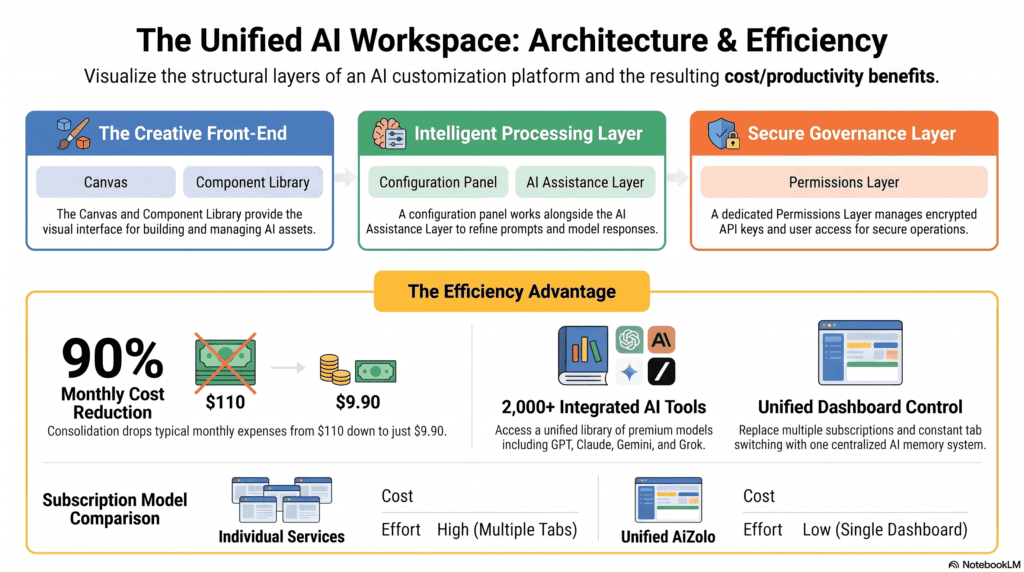
1. A canvas or grid layer. This is the visual surface — a flowchart canvas, a dashboard grid, or a page builder — where elements can be placed and connected.
2. A component library. Pre-built blocks (forms, tables, AI agent nodes, integration connectors, chat widgets) that users drag onto the canvas.
3. A configuration layer. Clicking a block opens a settings panel where you define behavior — what data it reads, what trigger fires it, what output it produces — without code.
4. An AI assistance layer. In 2026-generation tools, this is often a chat-style assistant that can generate a starting layout, write a formula, or suggest the next block based on a plain-language prompt.
5. A permissions and publishing layer. Once configured, the workspace is shared, published, or deployed, with role-based access controls determining who can edit versus view versus run it.
The “customization” experience is the sum of these layers working together — not just the drag-and-drop canvas alone.
Core Customization Features to Look For
When evaluating a platform, these are the features that materially affect how much you can actually adapt the workspace:
- Modular panels and widgets you can add, remove, resize, or rearrange.
- Custom fields and data schemas so the workspace matches your business’s terminology, not the vendor’s.
- Reusable templates for workflows, dashboards, or agent configurations.
- Role-based views, so a salesperson and an operations manager see different arrangements of the same underlying data.
- Native and third-party integrations (CRM, spreadsheets, messaging apps, storage) accessible from within the canvas.
- Conditional logic and branching inside workflow nodes, without needing a separate scripting environment.
- Version history and rollback, so a bad customization can be undone.
- Custom code escape hatches — the ability for a developer to drop into JavaScript, Python, or a plugin system when the visual tools hit their limits.
- AI-assisted scaffolding, where a natural-language prompt generates a first draft of a layout, workflow, or formula that a human then edits.
A platform that offers only the first item on this list — draggable widgets — is a page builder, not a customizable AI workspace. The presence of custom fields, permissions, and an extensibility layer is what separates a toy from a business tool.
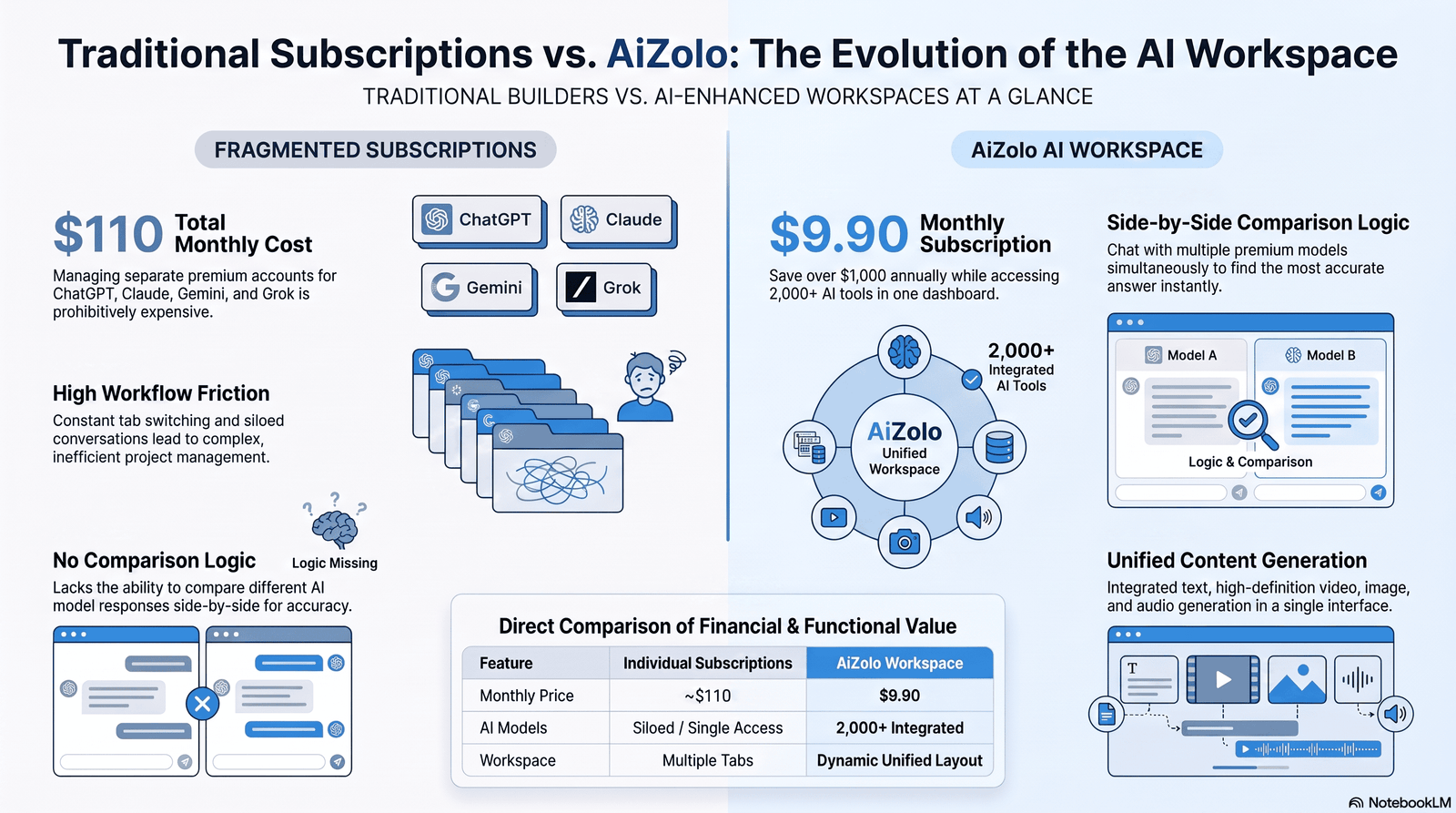
Traditional Builders vs. AI Workspaces
| Aspect | Traditional Drag-and-Drop Builder | AI-Enhanced Workspace |
|---|---|---|
| Starting point | Blank canvas or static template | Prompt-generated first draft, then manual refinement |
| Logic creation | Manual rule configuration | AI can suggest or auto-generate conditional logic |
| Data handling | Manual field mapping | AI-assisted mapping and data cleanup suggestions |
| Content generation | None built in | Text, summaries, or images generated inline |
| Learning curve | Moderate | Lower for first drafts, similar for fine-tuning |
| Best for | Predictable, rules-based processes | Processes involving unstructured data or judgment calls |
Neither approach is strictly “better.” A traditional builder is often more predictable and easier to audit; an AI-enhanced workspace is faster to start but requires more scrutiny of what the AI generated.
Manual Workflow vs. AI-Assisted Workflow
| Factor | Manual Workflow | AI-Assisted Workflow |
|---|---|---|
| Setup speed | Slower — every rule defined by hand | Faster initial setup via AI suggestions |
| Handling exceptions | Requires explicit rules for each case | Can use AI judgment for ambiguous cases |
| Predictability | High | Moderate — outputs need review |
| Auditability | Straightforward | Requires logging AI decisions separately |
| Skill required | Process design skill | Prompting and review skill |
The practical takeaway: AI-assisted workflows reduce setup time but increase the need for review and monitoring, particularly for anything customer-facing or compliance-sensitive.
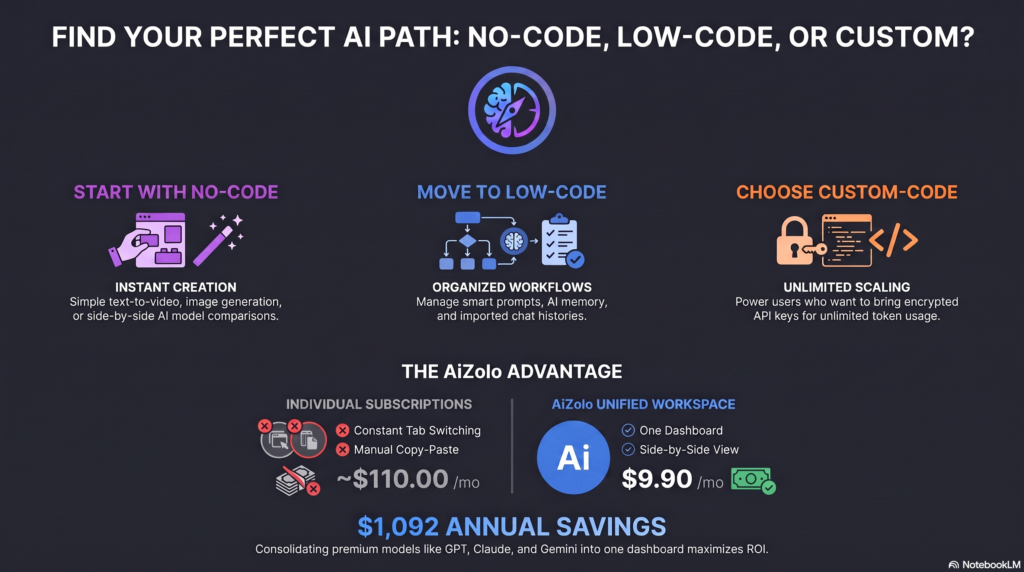
No-Code vs. Low-Code Customization
| Factor | No-Code | Low-Code |
|---|---|---|
| Coding required | None | Some, for advanced logic |
| Flexibility ceiling | Lower — bound by vendor’s blocks | Higher — custom code fills gaps |
| Ideal user | Business users, marketers, ops teams | Developers, technical product teams |
| Time to first result | Fastest | Slightly slower |
| Long-term scalability | Can hit walls on complex logic | Better suited to complex, evolving systems |
Several current platforms document offering both modes in one product — for example, open-source workflow tools that support fully visual building alongside custom JavaScript nodes for teams that need more control, and internal-tool builders that pair drag-and-drop CRUD interfaces with a plugin system for custom components.
That hybrid model — no-code by default, low-code when needed — is becoming the standard pattern rather than the exception.
Popular Platforms and How They Approach Customization
The names below are illustrative of different approaches in the category as documented in their own materials and independent 2026 reviews. Pricing and exact feature sets change frequently, so always confirm current details on the vendor’s site before deciding.
| Platform Type | Example Approach | Customization Strength |
|---|---|---|
| Open-source automation | Visual node canvas with full custom-code nodes and self-hosting | High technical flexibility, steeper learning curve |
| Internal-tool builder | Drag-and-drop CRUD UI generation from connected databases, plus a plugin system | Strong for structured internal apps |
| Visual app builder (web apps) | Component-based canvas with AI-assisted page and logic scaffolding | Strong for founders and small teams shipping real apps |
| Chatbot-specific builder | Flowchart-style conversation block canvas | Best for a narrow, well-defined use case |
| Enterprise workflow suite | Governed, template-heavy builder with audit logs and SSO | Strong for compliance-heavy organizations, less nimble for rapid iteration |
Real-World Examples by Department
Marketing. A campaign dashboard where a team drags in a content-calendar widget, an AI copy-draft panel, and a performance-metrics block, then arranges them by campaign stage rather than by tool.
Customer Support. A support workspace where agents customize their own view — ticket queue, AI-suggested reply drafts, and a knowledge-base search panel — while managers see a different, aggregated dashboard from the same underlying data.
Sales. A pipeline board customized with deal-stage columns, an AI-generated lead-summary panel, and a drag-and-drop sequence builder for follow-up emails.
HR. An onboarding workspace where HR customizes a checklist template per department, with AI drafting welcome messages that a human reviews before sending.
Education. An instructor dashboard where a teacher drags in a gradebook widget, an AI-assisted quiz generator, and a student-progress tracker.
Software Development. An internal-tools workspace where engineers use a drag-and-drop CRUD builder connected to a production database, reserving custom code for logic the visual tools can’t express.
Content Creation. A publishing workspace combining a drafting panel, an AI-assisted editing block, and a scheduling calendar, customized per content type (blog, newsletter, social).
Small Businesses. A single workspace combining invoicing, a customer list, and a simple automation (“when invoice is overdue, send reminder”), assembled without hiring a developer.
Enterprise Teams. A governed workspace template rolled out company-wide, with locked sections for compliance and open sections for team-level customization.
Benefits
- Faster setup than custom-coded software, especially for common patterns.
- Lower dependency on engineering resources for day-to-day changes.
- Better fit to actual workflows, since teams can rearrange the workspace instead of adapting to a fixed layout.
- Faster iteration, since changes don’t require a deployment cycle.
- Wider participation, since non-technical staff can contribute to workflow design.
Limitations and Trade-offs
- Ceiling on complexity. Highly conditional or performance-sensitive logic often still needs custom code.
- AI-generated output needs review. Scaffolded layouts, formulas, or text are a starting point, not a finished, verified result.
- Vendor lock-in risk. Workspaces built entirely inside one platform’s proprietary blocks can be costly to migrate later.
- Governance overhead at scale. The more people who can customize a shared workspace, the more you need permissions, templates, and change tracking to avoid chaos.
- Learning curve for advanced features. “No-code” does not mean “no learning curve” — conditional logic, data mapping, and integrations still require some training.
Being direct about these limitations matters: a workspace that is easy to start is not automatically easy to maintain at scale.
Security and Governance Considerations
Before customizing a shared workspace, confirm:
- Who can edit versus view versus publish changes (role-based access control).
- Whether the platform logs who changed what, and when.
- How authentication credentials for connected apps are stored (credential management, encryption at rest).
- Whether the platform supports single sign-on (SSO) for enterprise identity management.
- What data residency or compliance certifications apply, if you handle regulated data.
- Whether AI-generated content or decisions are logged separately for audit purposes.
Several enterprise-focused platforms specifically call out granular permissions, audit logs, and SSO as requirements teams should evaluate before rolling out workflow automation broadly — this is a governance concern, not just a feature checklist item.
Best Practices for Customizing an AI Workspace
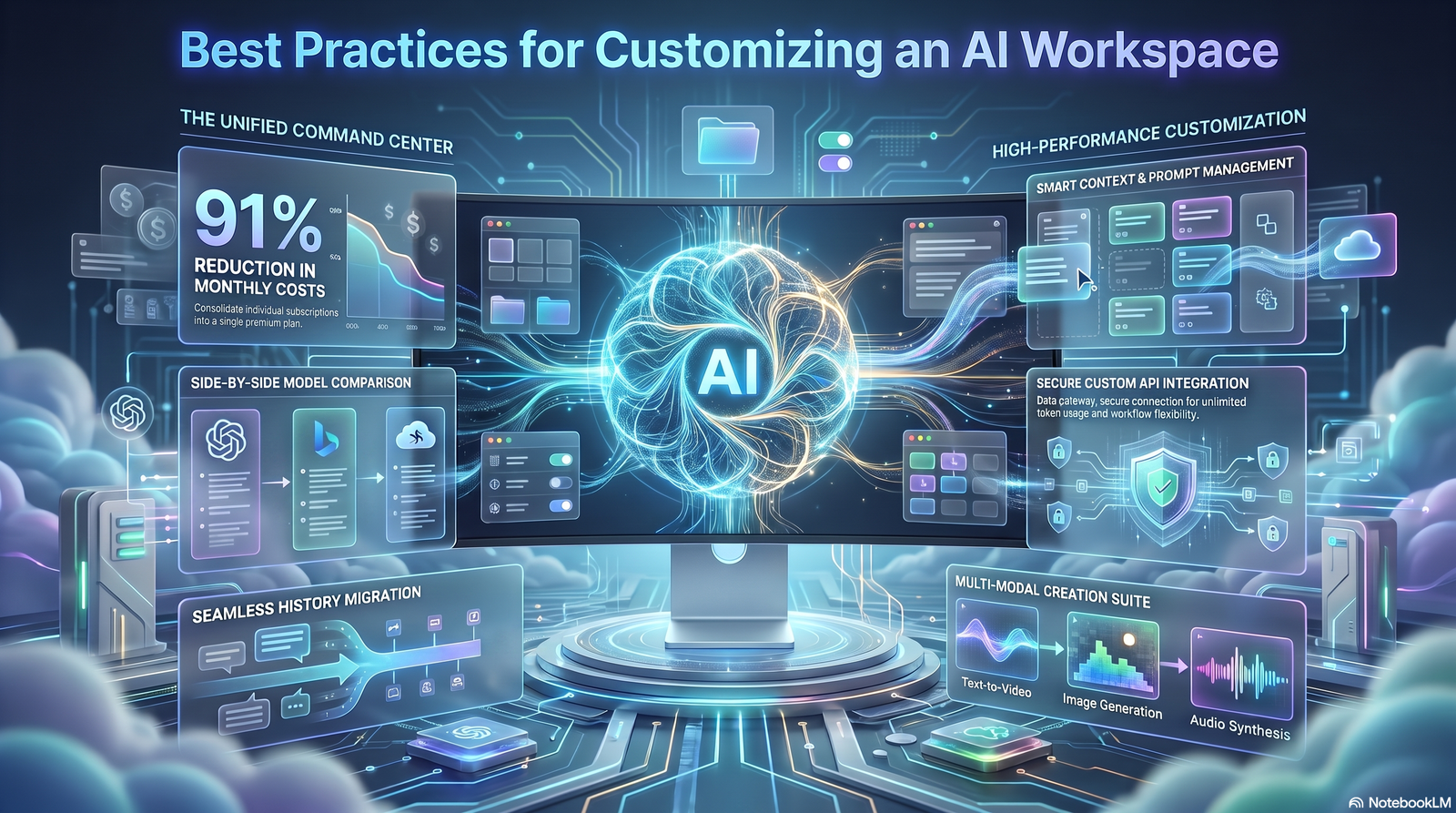
- Start from a template, then customize, rather than building from a blank canvas.
- Separate development and production environments so customizations are tested before they affect live work.
- Document your custom fields and naming conventions so the workspace stays understandable as more people touch it.
- Review AI-generated logic or content before publishing, especially anything customer-facing.
- Assign an owner for each shared workspace to prevent uncontrolled sprawl of duplicate customizations.
- Use version history before making large structural changes.
- Limit who can edit shared, high-traffic dashboards, while allowing broader view access.
Common Mistakes to Avoid
- Treating AI-generated scaffolding as final output instead of a draft.
- Over-customizing early, before the team has settled on a stable process.
- Ignoring permissions until after a workspace is already shared broadly.
- Building critical business logic entirely inside a single vendor’s proprietary blocks with no export or migration path.
- Skipping a test/staging environment for automations that touch live customer data.
- Letting every team member customize a shared dashboard independently, resulting in inconsistent views across the organization.
A Customization Maturity Model
Level 1 — Template use. The team uses out-of-the-box templates with minimal changes.
Level 2 — Layout customization. Teams rearrange panels and widgets to fit their process, still using built-in blocks only.
Level 3 — Data and logic customization. Teams define custom fields, conditional logic, and integrations specific to their business.
Level 4 — Governed customization. Customization is standardized through internal templates, permissions, and review processes across the organization.
Level 5 — Extended customization. Developers extend the platform with custom code, plugins, or API-based integrations beyond what the visual tools alone support.
Most small teams operate comfortably at Level 2–3. Enterprises adopting workspace platforms broadly typically need to reach Level 4 to avoid fragmentation.
Implementation Roadmap
- Define the use case narrowly — one workflow or dashboard, not “customize everything.”
- Pick a platform based on your ceiling, not just your starting point — consider what happens when requirements get more complex.
- Build a pilot workspace with a small group.
- Set permissions and a review process before wider rollout.
- Roll out a governed template to additional teams, allowing bounded customization.
- Monitor usage and AI-generated output quality over the first few weeks.
- Revisit and prune unused customizations quarterly.
Feature Evaluation Checklist
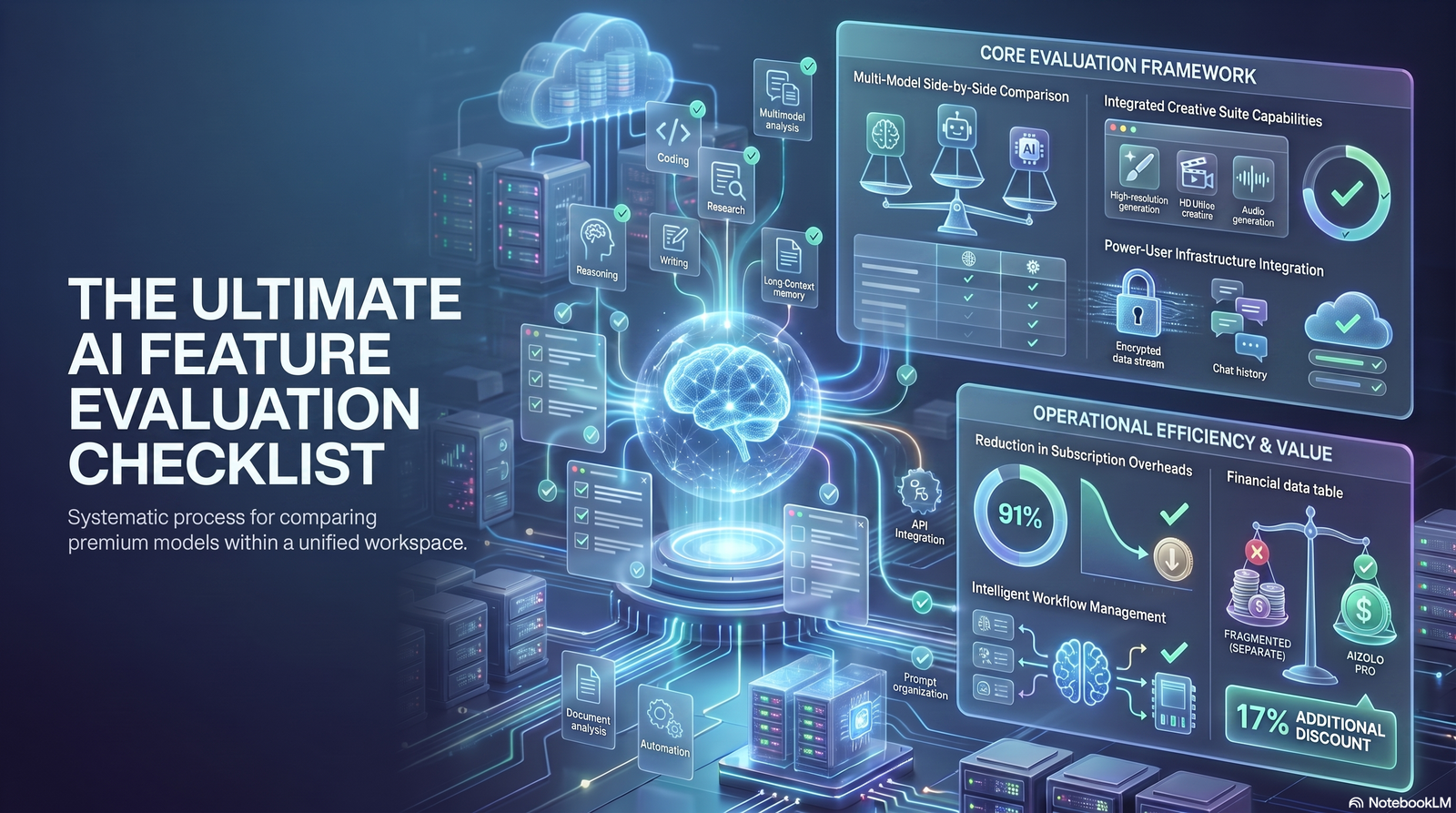
Use this when comparing platforms:
- [ ] Drag-and-drop canvas with modular, resizable widgets
- [ ] Custom fields and data schema support
- [ ] Role-based permissions and audit logs
- [ ] Native integrations with your existing tools
- [ ] AI-assisted scaffolding for layouts, formulas, or workflows
- [ ] Custom code or plugin escape hatch for advanced logic
- [ ] Template library relevant to your industry
- [ ] Version history and rollback
- [ ] SSO and enterprise identity support (if applicable)
- [ ] Clear data export or migration path
Future Trends
Based on current 2026 product direction across the category, a few patterns are worth watching rather than treating as settled fact:
- Deeper natural-language scaffolding, where describing a workflow in plain language produces a more complete first draft, with drag-and-drop reserved for refinement rather than initial construction.
- Convergence between chatbot builders, workflow automation tools, and app builders, as vendors add each other’s capabilities into a single workspace.
- Increased emphasis on governance features (permissions, audit logs, RBAC) as these tools move from individual and small-team use into enterprise-wide deployment.
- AI-assisted file and data organization extending beyond workflow canvases into general workspace housekeeping, as seen in recent updates to mainstream productivity suites.
These are directional observations, not guarantees — the category is moving quickly, and specific vendor roadmaps should be confirmed directly before making purchasing decisions.
FAQs
1. What is a drag and drop AI workspace? It’s a visual environment where you build and configure AI-assisted tools — dashboards, workflows, or agents — by arranging components on a canvas instead of writing code.
2. Do I need to know how to code to customize an AI workspace? No, for most core customization (layout, templates, basic logic). Advanced or highly conditional logic sometimes still requires code or a low-code escape hatch.
3. What’s the difference between no-code and low-code AI workspaces? No-code tools require zero coding but have a flexibility ceiling; low-code tools add custom code options for cases the visual builder can’t handle.
4. Are AI-generated workflows safe to use without review? No. AI-generated logic, formulas, or content should be reviewed before being published, especially for anything customer-facing or compliance-sensitive.
5. Can small businesses benefit from these tools, or are they only for enterprises? Small businesses are often the fastest adopters, since these tools reduce the need to hire developers for basic automation and dashboards.
6. What should I check before customizing a shared workspace at my company? Confirm permissions, who can publish changes, whether there’s an audit log, and whether there’s a staging environment separate from production.
7. How is a drag and drop AI workspace different from a traditional no-code app builder? The addition of AI assistance — for scaffolding layouts, generating content, or suggesting logic — distinguishes an “AI workspace” from a purely manual drag-and-drop builder.
8. What happens if I outgrow the customization options of a no-code platform? Look for platforms with a low-code or custom-code escape hatch, or plan a migration path before you hit that ceiling.
9. Do these platforms support integrations with tools like Slack, Google Sheets, or Salesforce? Most mainstream platforms in this category document native integrations with common business tools; the specific list varies by vendor and should be confirmed on official documentation.
10. Is vendor lock-in a real risk with drag and drop AI workspaces? Yes, particularly if business logic is built entirely inside proprietary blocks with no data export option. Evaluate export and migration paths before committing.
11. What’s the biggest mistake teams make when customizing these workspaces? Over-customizing before the underlying process is stable, and skipping permissions/governance until problems appear.
12. How do I know if my team needs Level 4 governance (from the maturity model above)? If more than a handful of people are customizing a shared workspace, or if it touches regulated data, standardized templates and permissions become necessary.
Conclusion
Drag and drop AI workspace customization features give teams real control over how AI-assisted tools look, behave, and connect — without requiring a developer for every change.
The category is genuinely useful, but it isn’t magic: AI-assisted scaffolding still needs human review, “no-code” still has a learning curve, and shared workspaces still need permissions and governance as more people use them.
The platforms that hold up over time are the ones offering a real ceiling — custom fields, integrations, permissions, and a code escape hatch — not just a pretty canvas.
Before choosing a platform, run it through the feature checklist and maturity model above, and confirm current pricing and capabilities directly on the vendor’s official documentation, since this space changes quickly.
Author Bio
Jeevesh Tripathi AI Researcher & Technical Content Specialist Email: jeevesh@aizolo.com
Jeevesh Tripathi is an AI researcher and technical content specialist focused on workflow automation, SaaS platforms, and no-code/low-code tooling. His work centers on evidence-based evaluation of emerging AI products, translating technical documentation into practical guidance for business owners, operations teams, and builders. He prioritizes verifying claims against primary sources and clearly flagging uncertainty over speculation, drawing on hands-on evaluation of automation and workspace platforms across multiple industries.
-1 OR 3*2>999