Table of Contents
Introduction
Somewhere in the last two years, “make my dog look like a Renaissance king” went from a niche joke to one of the most-searched pet trends online. The reason is simple: an AI pet portrait generator can now turn a blurry phone photo of your cat or dog into gallery-style art in under a minute, for free or close to it.
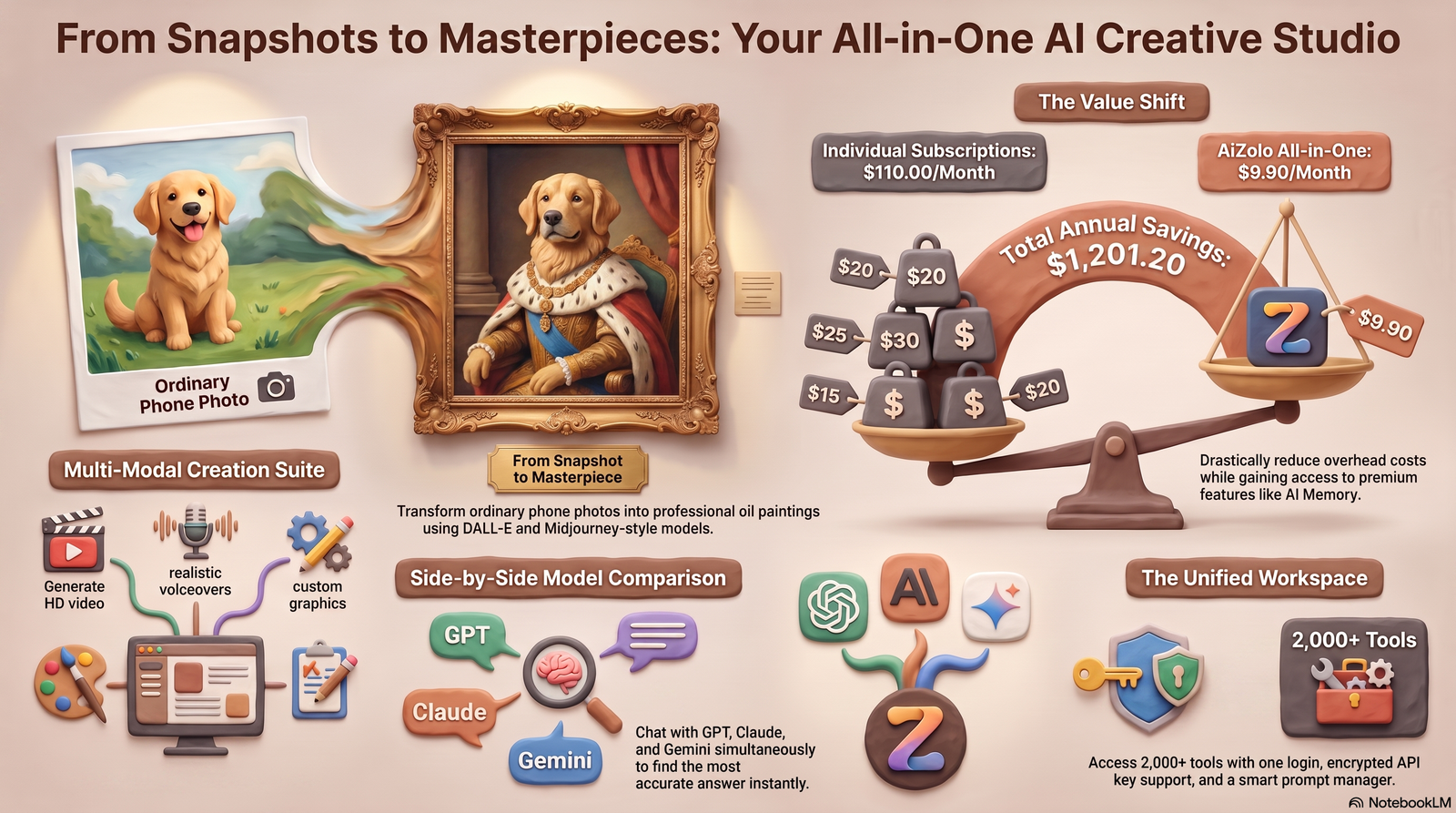
This guide is different from most “top 10” roundups. Instead of listing tools by how much they pay in affiliate commissions, it walks through how these generators actually work, what separates a genuinely good result from a distorted mess, and which tools currently do what — based on their own documentation, not marketing hype.
You’ll find:
- A plain-English explanation of the AI behind pet portraits
- An honest comparison of today’s leading tools
- 30+ ready-to-use prompts
- Printing, copyright, and privacy guidance most guides skip
- 15+ FAQs answered directly
Whether you want a royal portrait for your wall, a cartoon avatar for Instagram, or a memorial piece for a pet you’ve lost, you’re in the right place.
What Is an AI Pet Portrait Generator?
Quick answer: An AI pet portrait generator is software that uses image-generation AI (usually diffusion models) to turn a photo of your pet into a new, artistic image — such as a painting, cartoon, or fantasy scene — while keeping your pet recognizable.
Unlike a photo filter, which layers an effect on top of your existing picture, an AI pet portrait generator actually redraws the image. It analyzes your pet’s face shape, fur pattern, eye color, ears, and pose, then generates a brand-new image in the style you choose. That’s why a good tool can turn a golden retriever into a Renaissance duke and still make it obviously your golden retriever.
How This Differs From Photo Editors
| Feature | Photo Editor / Filter | AI Pet Portrait Generator |
|---|---|---|
| Process | Overlays effects on the original pixels | Generates a new image from scratch |
| Style range | Limited presets (sepia, cartoon overlay) | Painting, fantasy, 3D, anime, royal, and more |
| Pet likeness | Preserved exactly (it’s the same photo) | Approximated — quality varies by tool |
| Creativity | Low | High — full scene changes, costumes, backgrounds |
| Output uniqueness | Same base photo, different tint | Genuinely new artwork each time |
The technology underneath most of these tools is a diffusion model — the same family of AI that powers tools like Stable Diffusion, DALL·E, and Google’s Gemini image models. We’ll unpack that in the next section.
How Does an AI Pet Portrait Generator Work?
Quick answer: You upload a photo, choose or write a style prompt, and a diffusion-based AI model analyzes the pet’s features before generating a new image guided by both the reference photo and the text prompt.
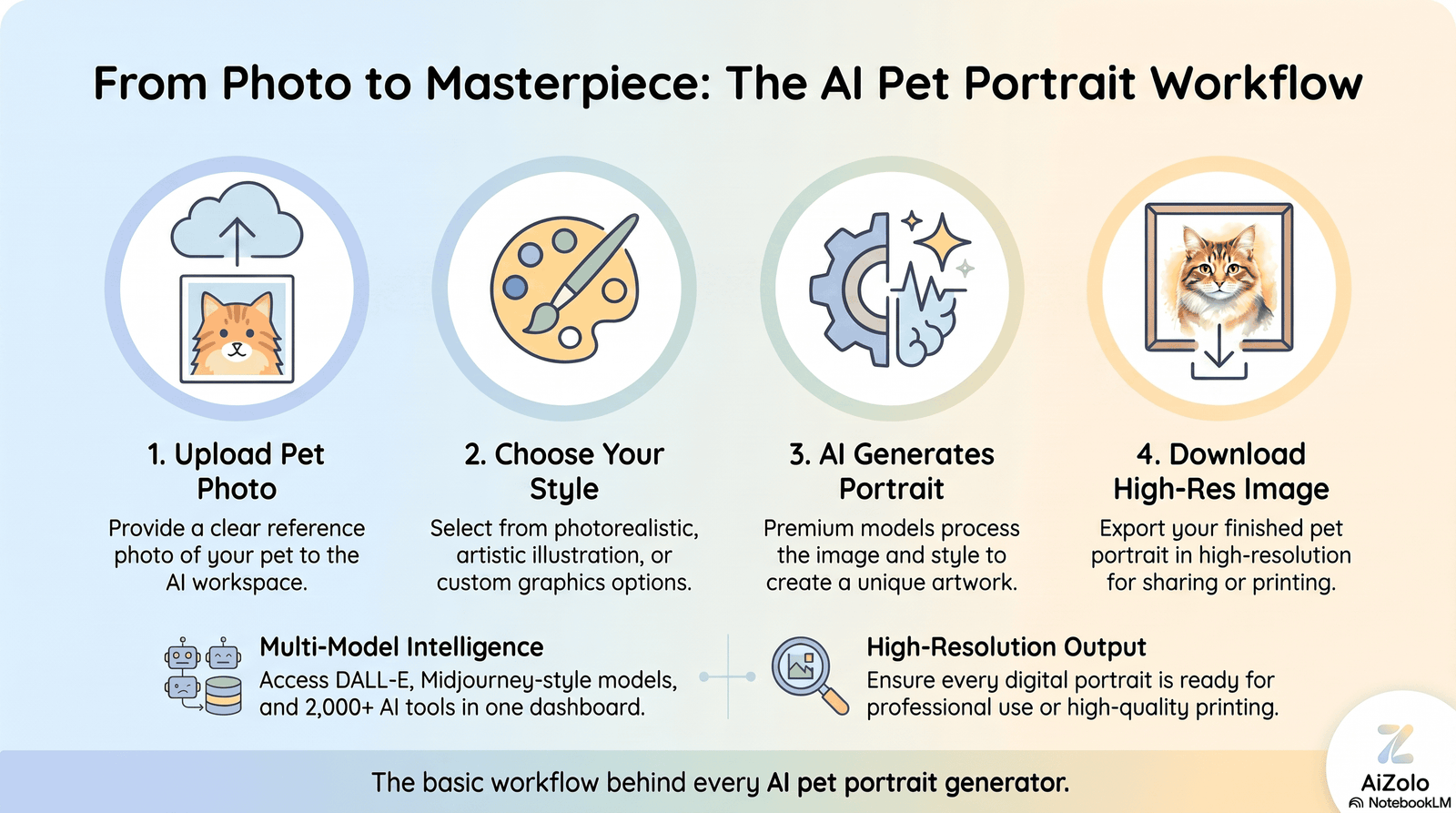
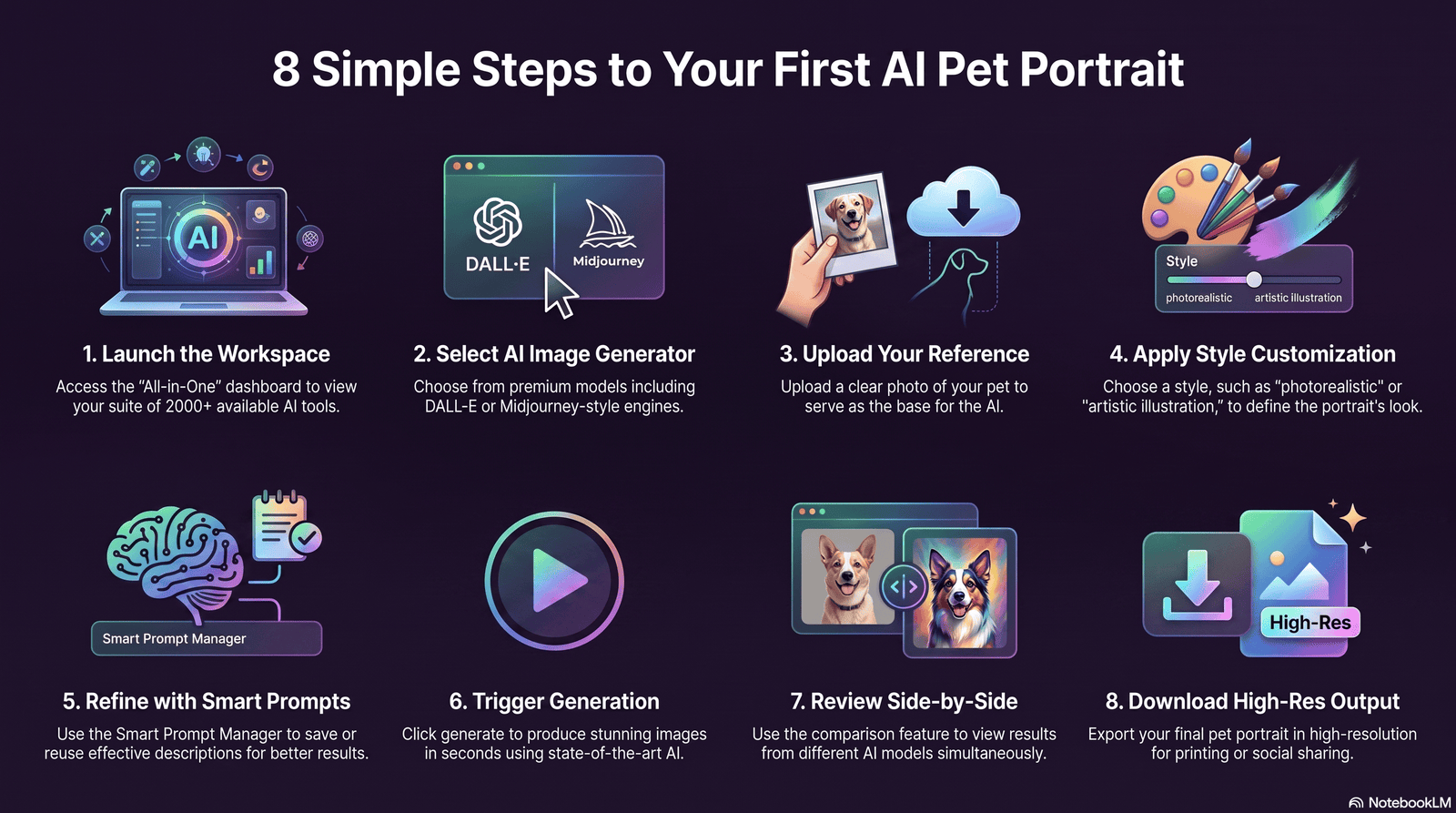
Here’s the simplified workflow almost every tool follows:
- Upload — You provide a clear photo of your pet (most tools also accept multi-pet photos).
- Prompt or Style Selection — You either pick a preset (e.g., “Royal Painting,” “Watercolor,” “Cyberpunk”) or write a custom text prompt describing the scene.
- Style Application — The AI blends your pet’s actual features with the visual style using image-to-image diffusion, which uses your photo as a structural reference rather than generating a random animal.
- AI Rendering — The model produces one or more candidate images in seconds to a couple of minutes, depending on resolution and server load.
- Review & Regenerate — Most tools let you regenerate with a tweaked prompt if the first result misses the mark.
- Download — You export the final image, often in a higher resolution than the screen preview, sometimes with an upscaling step.
Why some results look “off”
Diffusion models weren’t originally trained specifically on animals, so some tools still struggle with things like extra toes, warped ears, or overly generic dog breeds. The better pet-specific tools address this by fine-tuning on animal datasets or applying feature-preservation techniques that lock in fur pattern, eye color, and markings before stylizing.
Benefits of Using an AI Pet Portrait Generator
- Personalization — Every portrait is built from your specific pet’s features, not a generic template.
- Speed — Most tools generate a result in under a minute, versus days or weeks for a commissioned painting.
- Creativity without skill — You don’t need to draw or paint; you just need a good photo and a clear idea.
- Great for gifts — A custom royal or cartoon portrait is a distinctive, low-cost gift for pet owners.
- Social media ready — Styled pet portraits consistently perform well as profile pictures, Instagram posts, and holiday cards.
- Printable keepsakes — Many tools output print-resolution files suitable for canvas or framed prints.
- Cost savings — Free and low-cost tiers exist across nearly every major platform, compared to $50–$400+ for a hand-painted commission.
Expert Tip: If your goal is a printed canvas, generate at the highest available resolution setting from the start. Upscaling a low-res AI image after the fact often introduces artifacts around fur and whiskers.
Popular Styles You Can Create
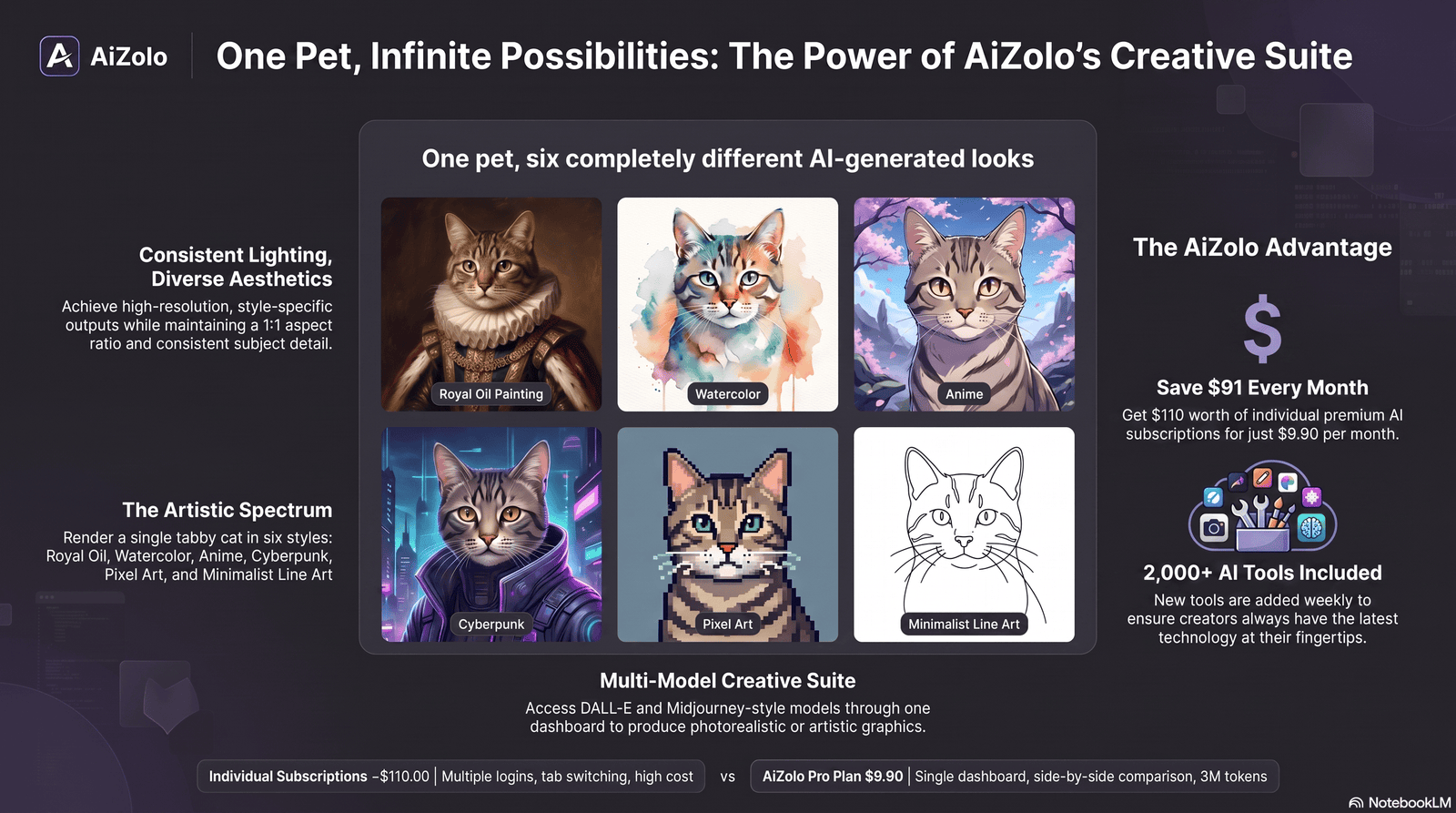
AI pet portrait generators typically offer a mix of these style categories:
- Royal / Renaissance — Crowns, velvet robes, oil-painting textures
- Classic Oil Painting — Museum-style brushwork and lighting
- Watercolor — Soft, blended pastel tones
- Disney / Pixar-Style 3D — Big expressive eyes, cinematic lighting
- Anime — Stylized line work and color palettes
- Cartoon / Illustration — Bold outlines, flat colors
- Fantasy — Wizards, dragons, mythical settings
- Cyberpunk — Neon lighting, futuristic backdrops
- Minimalist / Line Art — Clean, modern, single-line silhouettes
- Pixel Art — Retro 8-bit or 16-bit style
- Vintage / Sepia — Aged, historical photograph look
- Renaissance Duke or Duchess — A specific sub-style of the royal trend
- Studio Photography Enhancement — Realistic, professional-lighting look rather than a full style change
- 3D Illustration / Claymation — Rounded, toy-like rendering
- Pop Art — Warhol-inspired bold color blocking
Most platforms let you regenerate the same photo across several styles, so it’s worth experimenting before you commit to a final print.
Best AI Pet Portrait Generator Free Tools (2026)
This comparison is based on each platform’s own product pages and documentation as of mid-2026. Where a tool doesn’t publicly document a feature, we’ve marked it “Not publicly specified” rather than guessing.
| Tool | Best For | Free Plan | Customization | Output Quality | Commercial Use | Pros | Cons |
|---|---|---|---|---|---|---|---|
| Aizolo | Running one prompt across multiple AI models, then handling the rest of the creative workflow (writing, research) in the same place | Free tier available; Pro plan is $9.90/month for full access to all image, video, and audio tools | High — custom prompts, multi-model generation, and a Smart Prompt Manager for saving your best-performing prompts | Varies by underlying model chosen (includes DALL·E- and Midjourney-style options) | Not publicly specified for free tier; check current terms | Generate the same pet portrait prompt across several models at once and compare results side by side — useful for rescue orgs, Etsy sellers, or photographers producing portraits repeatedly, not just one-off users | Multi-tool platform, so it’s less narrowly focused than a single-purpose pet-portrait app; commercial terms should be confirmed directly |
| Bylo.ai | Fast, no-signup free portraits | Yes, no account required | Preset styles (Royal, Watercolor, custom prompt support) | High-resolution, uses recent image models | Commercial use permitted for paid users per their site | No sign-up needed for basic use; broad animal support (dogs, cats, birds, rabbits, hamsters) | Commercial rights tied to paid tier, not the free tier |
| ImagineMe AI | Deep customization (props, outfits, backgrounds) | Credit-based, not fully free | High — background, props, outfit, pose, and size adjustments | High-resolution, print-ready per their claims | Not publicly specified | Strong prompt-based customization; wide style range from oil painting to modern art | Requires purchasing credits rather than unlimited free generations |
| PosterPet | Quick poster-style pet art | Limited details published | Not publicly specified in detail | Described as “stunning,” specifics not published | Not publicly specified | Simple, fast, poster-focused workflow | Publicly available documentation is limited compared to larger platforms |
| Media.io | Beginners who want guided prompt templates | Free to try, paid tiers for more generations | High — includes object remover, background remover, and AI upscaler as companion tools | High-resolution; recommends 1500px+ on the short side for printing | Not publicly specified for free tier | Built-in cleanup tools (background/object removal, upscaling) before you even generate; browser-based on any device | Advanced style variety may require the paid tier |
| Canva AI | Users already designing in Canva (cards, social posts) | Limited free generations per month | Text-to-image only — generates from a prompt, does not transform your actual pet photo | Good for generic graphics | Depends on Canva plan/license | Seamless if you’re already building a card, post, or flyer in Canva | Does not use your pet’s actual photo, so it can’t guarantee a true likeness |
| Adobe Firefly | Commercially safe, professional-grade output | Free AI pet portrait generator available; broader Firefly plan has monthly credit limits | High — composition, lighting, camera angle, and style controls; supports multiple pets in one image | High-resolution, described as commercially safe since Firefly trains on licensed/public domain content | Yes — Adobe states Firefly-generated content is designed to be commercially safe | Strong commercial-use assurances; multi-pet support; fine creative controls | More complex interface than single-purpose pet apps; broader Firefly credit limits apply outside the free pet tool |
| Microsoft Designer / Bing Image Creator | Free, no-frills text-to-image portraits | Free | Text-prompt based | Powered by DALL·E-family models; solid general quality | Check current Microsoft terms of use | Free and simple; good for quick, playful results | Text-to-image rather than true photo transformation, so likeness accuracy is more limited |
Important disclosure: Free tiers, pricing, and commercial-use rights change frequently. Always check each platform’s current terms before using a portrait commercially (e.g., on products you sell).
How to Create an AI Pet Portrait (Step-by-Step)
- Choose your photo. Pick a well-lit, front-facing photo where your pet’s eyes and face are clearly visible. Avoid motion blur.
- Pick a tool from the comparison table based on your priority — free and fast, deep customization, or commercial-safe output.
- Upload the photo into the generator’s image-to-image (not text-to-image) tool, if the platform offers both — this preserves your pet’s actual likeness.
- Select a style or write a prompt. Use a preset for speed, or write a custom prompt for full control (see prompt list below).
- Generate multiple variations. Most tools let you create 2–4 versions per prompt — compare them before choosing.
- Refine if needed. If the fur pattern or eye color looks off, add more specific detail to your prompt (e.g., “black-and-white tuxedo markings, amber eyes”).
- Upscale if the tool offers it, especially if you plan to print.
- Download the final file in the highest resolution available.
Best Prompt Ideas
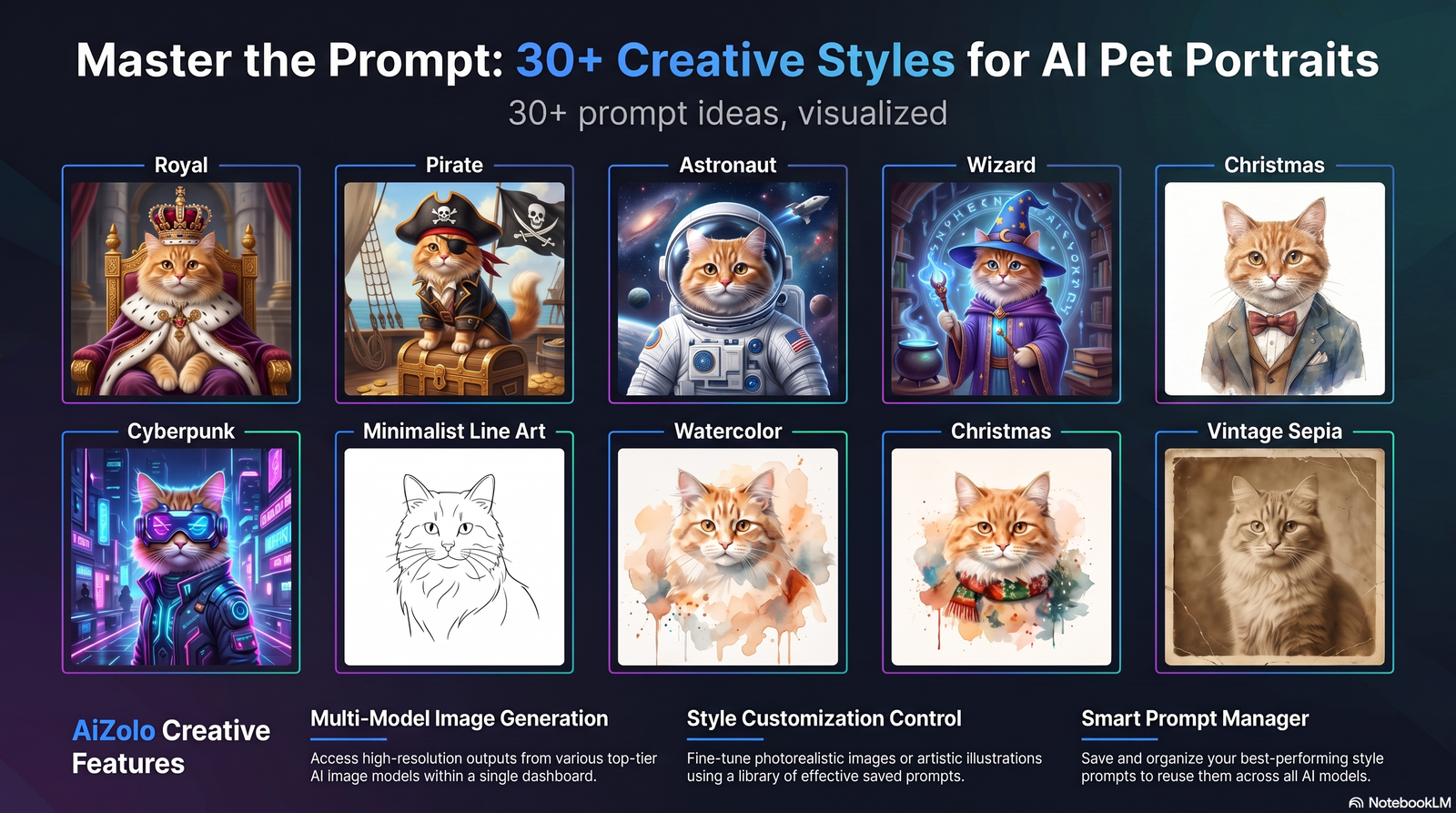
Well-written prompts consistently outperform single-word style picks. Try these as starting points — swap in your pet’s breed, coloring, and personality:
- Golden retriever wearing a jeweled crown, seated on a velvet throne, Renaissance oil painting style
- Regal queen portrait, cat wearing a lace collar and tiara, dark museum background
- Astronaut dog floating among glowing planets, cartoon fantasy illustration
- Pirate cat with an eyepatch and tricorn hat, weathered ship deck background
- Knight in shining armor, dog breed clearly visible beneath the helmet, dramatic lighting
- Wizard cat casting a spell, glowing runes, deep blue and purple tones
- Samurai dog in traditional armor, cherry blossoms in the background
- Fantasy warrior pet holding a sword, epic battlefield backdrop
- Cyberpunk cat with neon-lit fur highlights, futuristic city background
- Victorian-era portrait, dog in formal 1800s attire, oil painting texture
- Classic oil painting, close-up portrait, soft studio lighting
- Watercolor portrait, pastel background, loose brushstroke style
- Disney-style illustration, big expressive eyes, warm color palette
- Pixar-style 3D render, cinematic lighting, shallow depth of field
- Christmas portrait, pet in a festive sweater, fairy lights and snow
- Halloween portrait, pet dressed as a small vampire or witch
- Birthday portrait, party hat and balloons, bright colors
- Wedding portrait, pet in a tiny tuxedo or veil, elegant backdrop
- Minimalist line-art portrait, single continuous black line, white background
- Studio portrait on a solid black background, dramatic rim lighting
- Golden retriever in a palace hallway, marble floors, warm afternoon light
- Cat in a Renaissance painting, ornate gold frame, chiaroscuro lighting
- Superhero pet with a flowing cape, comic-book ink outlines
- Pop art portrait, bold Warhol-style color blocks
- Vintage sepia-toned portrait, antique photograph aesthetic
- Anime-style portrait, large eyes, soft cel-shaded coloring
- Pixel art portrait, retro 16-bit video game style
- Explorer pet in safari gear, jungle background, adventurous mood
- Royal king portrait, dog wearing an ermine-trimmed cape
- Fantasy phoenix companion scene, pet surrounded by warm firelight
- Nautical portrait, pet as a ship captain, ocean backdrop
- Elegant black-and-white studio portrait, classic photography style
Prompting Tip: Specificity beats brevity. “Dog portrait” gives the AI very little to work with. “Golden retriever, oil painting style, warm lighting, regal pose, dark background” gives it a clear creative direction — and produces more consistent results.
Tips for Better Results
- Lighting matters most. Natural, even daylight produces far better results than dim indoor shots.
- Use high-resolution source photos. Low-res or heavily compressed images lead to blurry or distorted output.
- Keep the background simple. Busy backgrounds can confuse the AI’s subject detection.
- Shoot at eye level. A straight-on angle preserves proportions better than extreme close-ups or top-down shots.
- Make sure breed-defining features are visible — ear shape, coat pattern, and facial markings help the AI keep your pet recognizable.
- Capture a natural expression. Alert, forward-facing expressions translate better into portraits than mid-motion shots.
- Write specific prompts, not single words.
- Use negative prompts where supported (e.g., “no extra limbs, no blurry background”) to reduce common AI artifacts.
Can You Print AI Pet Portraits?
Quick answer: Yes — most AI pet portrait generators export high-resolution files suitable for canvas, poster, or framed prints, as long as you generate or upscale to at least 300 DPI at your target print size.
Key things to check before printing:
- Resolution (DPI): For crisp prints, aim for 300 DPI at your final print size. A 12″x16″ canvas at 300 DPI needs roughly 3600×4800 pixels.
- Upscaling: If your generated image is lower resolution, use an AI upscaler (several tools, including Media.io, offer this as a built-in step) before sending to print.
- Print size: Smaller prints (5×7, 8×10) are more forgiving of lower resolution than large canvases (16×20 and up).
- Format: Most print services accept JPEG or PNG; check your printer’s preferred format and color profile (sRGB is standard for most consumer printing).
- Framing and canvas: Canvas wraps typically need extra “bleed” around the edges — check whether your chosen tool exports with margin, or plan to leave your pet centered with some background space.
Real-World Use Cases: Beyond Personal Keepsakes
Quick answer: AI pet portraits aren’t just novelty gifts — animal rescues, pet photographers, Etsy sellers, and veterinary brands are using them as practical marketing and product tools.
- Animal rescue organizations use styled portraits to make adoption listings stand out. A shelter dog photographed under harsh fluorescent lighting becomes a warmer, more shareable image once stylized — and more compelling adoption photos tend to drive more inquiries.
- Pet photographers offer AI-styled portraits as a paid add-on to standard photo sessions. Production cost is near zero once the base photo exists, but clients perceive it as extra value — a straightforward way to increase average order size.
- Etsy and print-on-demand sellers use AI pet portraits for custom mugs, phone cases, and canvas prints. Turnaround is minutes rather than days, which matters for sellers running made-to-order shops.
- Social media managers and pet influencers lean on styled portraits for seasonal campaigns — birthday posts, holiday content, milestone announcements — because distinctive art consistently outperforms plain photos for engagement.
- Veterinary clinics and pet wellness brands use stylized illustrations (often generated from stock or client photos) for signage, social posts, and campaign visuals without commissioning custom artwork each time.
Worth noting: commercial use cases are exactly where the licensing question in the “Are AI Pet Portraits Safe?” section above matters most. Before selling merchandise or using a portrait in paid marketing, confirm the specific tool’s commercial-use terms — this is the step sellers most often skip.
Are AI Pet Portraits Safe?
Quick answer: Reputable AI pet portrait tools process your photo securely and let you download your own artwork, but privacy practices, image ownership, and commercial-use rights vary significantly by platform — always check the specific tool’s terms before uploading or reselling.
Privacy
You’re uploading a personal photo, which may contain metadata (like location data) or recognizable backgrounds. Look for tools that clearly state whether they store your images, for how long, and whether uploads are used to train their models.
Image ownership
Ownership terms differ. Some platforms grant you full rights to generated images; others limit commercial use to paid tiers. Adobe Firefly, for instance, states its model trains on licensed and public domain content specifically so outputs are commercially safe to use.
Copyright basics
Under current U.S. Copyright Office guidance, purely AI-generated images without meaningful human creative input generally cannot be copyrighted by the user — a nuance worth knowing if you plan to sell prints or merchandise at scale. This is an evolving legal area, so it’s worth checking current guidance rather than relying on assumptions.
AI training on your uploads
Some free tools use uploaded images to improve their models unless you opt out. If this matters to you, read the privacy policy before uploading, particularly for tools with no account requirement (these sometimes have less transparent data practices, not more).
Terms of service
Before using any portrait commercially — for Etsy sales, merchandise, or branding — confirm the specific tool’s commercial-use terms. This varies even between free and paid tiers of the same tool.
Pros and Cons
| Pros | Cons |
|---|---|
| Fast — results in seconds to minutes | Likeness accuracy varies by tool and photo quality |
| Often free or low-cost | Commercial-use rights aren’t always included in free tiers |
| Huge style variety | Some tools still produce distorted features (extra toes, odd proportions) |
| No artistic skill required | Copyright status of AI-only output is legally unsettled |
| Easy to generate multiple versions | Privacy practices vary — read the fine print |
| Print-ready output from several platforms | Best classical/painterly results often require paid tiers |
Common Mistakes
- Using a blurry or low-resolution source photo — this is the single biggest cause of bad results.
- Choosing a text-to-image tool when you need photo-to-image — text-only tools (like Canva’s default generator) won’t use your actual pet’s face.
- Writing vague, one-word prompts instead of descriptive ones.
- Ignoring commercial-use terms before selling prints or products featuring the portrait.
- Skipping the upscale step before ordering large canvas prints.
- Using a photo with a busy or cluttered background, confusing the AI’s subject detection.
- Not trying multiple styles before settling on a final print — the first result isn’t always the best.
- Forgetting to check data/privacy policies before uploading sensitive or identifiable photos.
- Assuming all “free” tools include free commercial rights — many restrict this to paid plans.
- Overcomplicating the prompt with contradictory details (e.g., “photorealistic cartoon”), which confuses the model.
- Not cropping out other people or pets when you only want one animal as the subject.
AI Pet Portrait Generator vs. Traditional Pet Portrait Artist
| Factor | AI Pet Portrait Generator | Traditional Pet Portrait Artist |
|---|---|---|
| Turnaround time | Seconds to minutes | Days to weeks |
| Cost | Free to ~$20/month for most tools | $50–$400+ per commission |
| Customization | Prompt-based, broad style range | Deep personal collaboration with the artist |
| Consistency | Can vary between generations | Consistent, guided by artist skill |
| Uniqueness | Technically one-of-a-kind, but style presets are shared across users | Fully original, hand-crafted work |
| Emotional/sentimental value | Good for casual gifts and social content | Often preferred for memorials and heirloom pieces |
| Revisions | Instant regeneration | Often included, but slower turnaround |
Neither option is universally “better” — AI tools win on speed, cost, and experimentation; commissioned artists win on originality and emotional weight for milestone or memorial pieces.
Who Should Use an AI Pet Portrait Generator?
- Pet owners wanting a fun, affordable keepsake
- Artists looking for a fast base image or creative reference
- Gift creators needing a personalized present on short notice
- Etsy sellers building pet-themed product lines (with proper commercial-use rights)
- Small businesses in the pet space (groomers, sitters, shelters) creating marketing visuals
- Pet brands producing consistent, on-theme social content
- Content creators building pet-focused social media accounts
- Social media managers needing quick, engaging visual content
Frequently Asked Questions
1. What is an AI Pet Portrait Generator? A tool that uses AI image-generation models to turn a photo of your pet into stylized artwork, such as a painting, cartoon, or fantasy scene.
2. How does an AI Pet Portrait Generator work? It analyzes your uploaded photo’s key features, then uses a diffusion-based model to generate a new image guided by your chosen style or text prompt.
3. Is an AI pet portrait generator free? Many tools offer free tiers or limited free generations; higher resolution, more styles, or commercial rights are often reserved for paid plans.
4. Which AI pet portrait generator is best? It depends on your priority: Adobe Firefly for commercially safe output, Media.io for beginner-friendly guided prompts, ImagineMe AI for deep customization, and Aizolo for comparing multiple AI models in one place.
5. Can I use my AI pet portrait commercially? Only if the specific tool’s terms allow it — this varies between platforms and often between free and paid tiers of the same tool.
6. Do I own the copyright to my AI-generated pet portrait? Purely AI-generated images without significant human creative input generally aren’t eligible for copyright protection under current U.S. guidance — check current legal guidance if this matters for your use case.
7. What photo works best for an AI pet portrait? A clear, well-lit, front-facing photo with the pet’s face fully visible and minimal background clutter.
8. Can I create a portrait of multiple pets together? Some tools, including Adobe Firefly, explicitly support combining multiple pets into one stylized image.
9. How long does it take to generate a portrait? Typically seconds to a couple of minutes, depending on the tool and resolution.
10. Can AI pet portraits be printed on canvas? Yes, as long as the resolution is high enough (roughly 300 DPI at your intended print size).
11. Will the AI training on my photo be a privacy issue? It depends on the platform — check whether the tool stores your uploads or uses them for model training, and whether you can opt out.
12. What’s the difference between text-to-image and image-to-image pet portraits? Text-to-image generates a new image purely from a written description (won’t match your specific pet); image-to-image uses your actual photo as a reference, preserving real features.
13. Can I turn my pet into a royal painting specifically? Yes — “royal” or “Renaissance” style presets are among the most common and widely supported options across tools.
14. Do AI pet portrait generators work for cats, birds, and other non-dog pets? Most modern tools support a wide range of animals, including cats, rabbits, birds, and hamsters, though quality can vary by species.
15. Are AI pet portraits considered “real art”? That’s a genuinely debated question — they’re AI-generated interpretations rather than hand-crafted originals, which is why some people prefer commissioned artists for sentimental pieces.
16. Can I edit an AI-generated pet portrait afterward? Yes, most people bring the file into a standard photo editor for final touch-ups, cropping, or text overlays for cards.
17. What resolution do I need for a large canvas print? Aim for roughly 300 DPI at your final print size — for example, about 3600×4800 pixels for a 12″x16″ canvas.
18. Can I create seasonal or holiday-themed pet portraits? Yes — Christmas, Halloween, and birthday-themed prompts are among the most popular and widely supported styles.
19. Is it possible to get a bad or distorted result? Yes — low-quality source photos, vague prompts, or tools without pet-specific training can produce distorted features like extra toes or warped ears.
20. Do I need design skills to use these tools? No — most platforms are built for people with zero design or art experience.
Conclusion
An AI pet portrait generator won’t replace a hand-painted commission for every occasion, but for speed, affordability, and sheer creative range, nothing else comes close. The best results come down to three things: a clear, well-lit photo, a specific and thoughtful prompt, and a tool that matches your actual goal — whether that’s a quick free portrait for social media or a print-ready, commercially licensed piece for a business.
Start with a favorite photo of your pet, try two or three of the tools compared above, and see which style actually captures their personality. You might be surprised how quickly a simple snapshot becomes something worth framing.
Author
Jeevesh Tripathi AI Researcher & Technical Content Writer 📧 jeevesh@aizolo.com
Jeevesh Tripathi is an AI researcher and technical content writer specializing in generative AI tools, image generation systems, and practical software evaluation. His work focuses on breaking down complex AI concepts — from diffusion models to prompt engineering — into clear, actionable guidance for everyday users. With a background in SEO strategy and hands-on testing of emerging AI platforms, Jeevesh writes with an emphasis on transparency: clearly noting a tool’s real capabilities and limitations rather than overstating results. He regularly researches new AI image and content tools as they launch, aiming to give readers accurate, current information they can act on with confidence.