
Introduction
Most teams don’t store knowledge in one place. It lives in shared Google Drive folders that dozens of people touch every week.
That creates a real problem. You know the answer is somewhere in a shared folder, but finding it means digging through outdated file names, duplicate versions, and folders nobody has renamed since 2023. Platforms like Aizolo help streamline AI-powered workflows, reducing the time spent searching for the right information.
ChatGPT can help — but only if it can actually see those files. That’s where the confusion starts.
People want to connect ChatGPT to shared Google Drive folders so it can search project documentation, summarize meeting notes, compare contracts, or answer questions using the same files their team already works from — without anyone re-uploading anything.
In this guide, you’ll learn exactly how this connection works today, what ChatGPT can and can’t see in a shared folder, how permissions carry over from Google Drive, and how to set it up correctly the first time — whether you’re an individual Plus user or a Workspace admin rolling this out to an entire team.
Table of Contents
Quick Answer
Can you connect ChatGPT to shared Google Drive folders? Yes, on eligible paid plans. ChatGPT connects to Google Drive through its Connectors and Apps with Sync features, and it can reference shared folders, shared drives, and individual files — as long as your Google account already has access to them.
A few things to know upfront:
- Access requires ChatGPT Plus, Pro, Business, Team, Enterprise, or Edu. Free plans don’t get Connectors.
- ChatGPT never overrides Google’s permission system. If you can’t open a file in Google Drive, ChatGPT can’t either.
- You can attach Drive files and folders directly inside a Project as a living, updatable source.
- Workspace admins can enable a synced, indexed connection for an entire organization, including shared drives.
- OpenAI is rolling out expanded Google Drive actions with new OAuth scopes starting June 15, 2026, so admins should review workspace app settings around that date.
The rest of this guide walks through each of these in detail.
Why People Want to Connect ChatGPT to Shared Google Drive Folders
Shared Drive folders are where collaborative work actually happens — briefs, specs, client decks, research notes.
The problem is retrieval, not storage. Teams have the files; they just can’t find or synthesize them fast enough.
Connecting ChatGPT to a shared folder turns scattered documents into something searchable in plain language, instead of a folder tree nobody fully remembers.
Common reasons teams look into this:
- Document search — asking a question instead of digging through nested subfolders.
- Knowledge management — new hires or contractors getting answers from existing docs instead of pinging a Slack channel.
- Research synthesis — pulling themes across dozens of PDFs or reports at once.
- Collaboration — everyone on a project working from the same live source instead of five outdated copies.
This fits into a broader shift toward unified, multi-model AI workspaces for knowledge work. If your team is also comparing ChatGPT against other models for these same tasks, see our guide on the best AI chat platform that supports ChatGPT, Claude, and Gemini together.
How ChatGPT Connects with Google Drive
OpenAI offers two related but distinct ways to bring Google Drive into ChatGPT, and it’s worth knowing which one you’re actually using.
1. Connectors (on-demand access)
Connectors let ChatGPT pull specific files into a conversation when you reference them, without a full index of your Drive. This is the lighter-weight option and works well for occasional lookups.
2. Apps with Sync (indexed access)
Sync creates an indexed copy of your Drive content inside ChatGPT so search and retrieval are faster and can span many files at once. This is what most teams mean when they talk about “connecting” Google Drive at scale.
Google Docs, Sheets, and Slides used to be separate connected apps. OpenAI has since unified them under a single Google Drive app, so Docs, Sheets, and Slides actions are now accessed through one connection rather than three.
Availability by plan:
| Plan | Connector Access | Sync Access |
|---|---|---|
| Free | No | No |
| Plus | Limited, on-demand | No |
| Pro | Yes | Yes (self-service) |
| Team | Yes | Admin-configured |
| Business | Yes | Admin-configured, on by default for unified Drive actions |
| Enterprise / Edu | Yes | Admin-configured, off by default until enabled |
A workspace admin controls sync for Business, Enterprise, and Edu plans through ChatGPT workspace app settings, either by letting each person connect their own Google account (self-service) or by using a Google service account for centralized, admin-managed access.
Can ChatGPT Access Shared Google Drive Folders?
Yes — with one condition that trips people up constantly: ChatGPT can only see what your connected Google account can already see.
It doesn’t matter whether a file lives in My Drive, a shared folder, or a shared drive. If your account lacks permission in Google Drive, ChatGPT will not be able to retrieve it either.
Shared folders vs. shared drives
These two aren’t the same thing, and the distinction matters for what ChatGPT ends up able to see.
| Shared Folder | Shared Drive | |
|---|---|---|
| Ownership | Individual who created it | The organization, not a person |
| What happens if the owner leaves | Files can become orphaned or inaccessible | Files stay put automatically |
| Permission model | Simpler, folder-level sharing | Manager, Content Manager, Contributor, Viewer roles |
| Best for | Small teams, informal collaboration | Departments, long-term organizational content |
How ChatGPT handles workspace-wide shared drives
For admin-managed sync setups, workspace admins choose exactly how broadly the connection reaches across shared drives:
- Include all shared drives — the default, with no exclusions.
- Include most shared drives, exclude specific ones — useful for keeping HR or legal drives out of scope.
- Exclude most shared drives, include specific ones — a narrower, opt-in approach.
This means an admin can connect the “Marketing” and “Product” shared drives to ChatGPT while deliberately keeping “Finance” or “Legal” out, without touching Google’s own sharing settings at all.
FAQPage-worthy note
If someone in Google Drive doesn’t have access to a file in a shared folder, connecting ChatGPT will not grant them access. Permissions in Google always take priority over what ChatGPT tries to retrieve.
Step-by-Step Guide to Connect ChatGPT to Shared Google Drive Folders
This walkthrough covers the self-service path, which is what most Plus, Pro, and individual Team members will use.
Step 1: Open ChatGPT and go to Settings → Apps
What happens: You’ll see the ChatGPT app directory, including Google Drive. Expected result: A “Connect” button next to Google Drive. Possible errors: If Google Drive doesn’t appear, your plan may not support Connectors yet. Tip: You can also reach this from the “+” icon in the message composer.
Step 2: Click Connect and choose Sync (if available)
What happens: ChatGPT redirects you to Google’s sign-in page. Expected result: A Google consent screen listing the permissions ChatGPT is requesting. Possible errors: If you’re signed into multiple Google accounts, make sure you select the correct one for work files. Tip: For a work-managed connection, the account domain must match the domain your admin configured.
Step 3: Grant the requested Drive permissions
What happens: Google shows exactly which scopes ChatGPT is asking for, including “See and download all your Google Drive files” for full sync. Expected result: After granting access, you’re redirected back to ChatGPT. Possible errors: If sync setup fails immediately afterward, it’s usually because a required checkbox or scope wasn’t approved. Tip: Read the consent screen rather than clicking through it — this is the actual permission boundary ChatGPT will operate within.
Step 4: Wait for indexing to complete (sync only)
What happens: ChatGPT begins indexing your accessible Drive content in the background. Expected result: A progress indicator; partial results are searchable before indexing fully finishes. Possible errors: Large shared drives can take hours to fully index. Tip: You can start using ChatGPT with recently-indexed files while the rest finishes syncing.
Step 5: Reference your files in a chat
What happens: Use the “+” tools menu to attach a file, or simply describe what you’re looking for. Expected result: ChatGPT searches connected Drive content and pulls in relevant files. Possible errors: If a file doesn’t appear, confirm you personally have access to it in Drive. Tip: Naming the shared drive or folder in your prompt narrows the search and improves accuracy.
How to Use Shared Google Drive Files Inside ChatGPT Projects
Projects are ChatGPT’s way of keeping a chat, its instructions, and its reference files together in one place — closer to a working folder than a single conversation.
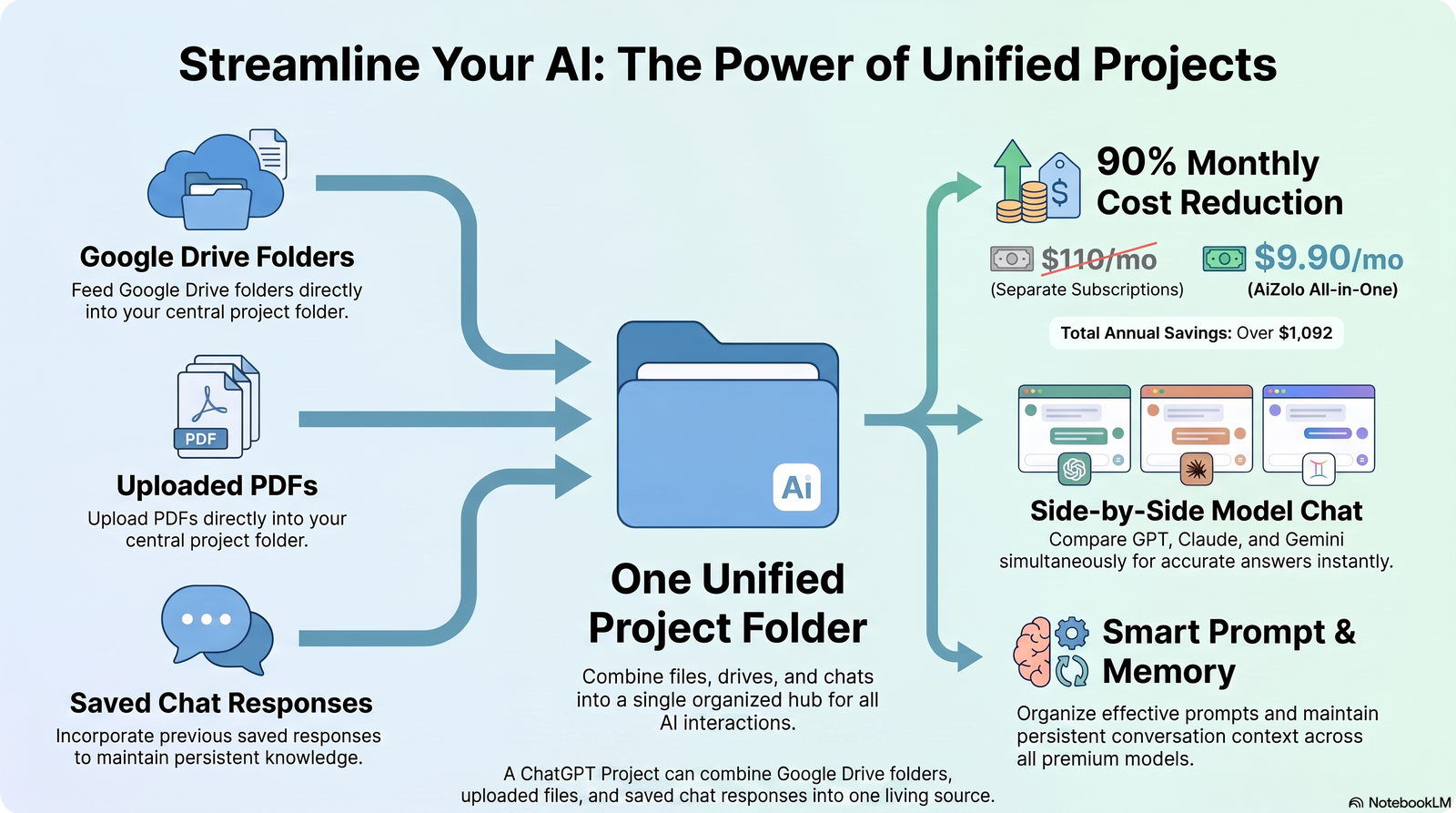
You can add a shared Google Drive file or folder as a project source by pasting its link directly into the project. ChatGPT will prompt you to connect the Google Drive app if it isn’t already linked.
This matters because project sources aren’t static uploads. A folder added this way stays connected, so updates your team makes in Drive can be reflected the next time ChatGPT references it — instead of you re-uploading a new version every time something changes.
Inside a project you can also:
- Use the Google Drive connector directly in project chats via the tools menu.
- Save useful ChatGPT responses back into the project as reusable reference material.
- Mix Drive-based sources with manually uploaded PDFs, spreadsheets, or pasted notes.
Note that upload limits still apply for manually added files, and they vary by plan, so very large document sets are better handled through the Drive connection than through direct uploads.
Supported File Types
| File Type | Supported | Best Use | Limitations |
|---|---|---|---|
| Google Docs | Yes | Reading, summarizing, drafting from text content | Complex formatting may not translate perfectly |
| Google Sheets | Yes | Data lookups, summarizing tables | Very large sheets may need to be narrowed by tab or range |
| Google Slides | Yes | Summarizing decks, pulling talking points | Visual layout and design elements aren’t fully interpreted |
| Yes | Contracts, reports, research papers | Scanned, non-searchable PDFs may need OCR first | |
| Plain text / Markdown | Yes | Notes, documentation, technical references | None significant — often the most reliable format |
| Images embedded in Docs/Slides | Limited | Not a primary use case | Text inside images may not always be read accurately |
| Non-Drive file types stored in Drive (e.g. .zip, .psd) | Not directly readable | Storage only | ChatGPT cannot open or interpret proprietary binary formats |
Benefits of Connecting ChatGPT to Shared Google Drive
| Team | Example Use |
|---|---|
| Research | Synthesizing findings across dozens of PDFs and reports |
| Sales | Pulling proposal history or pricing sheets during a live conversation |
| Marketing | Summarizing brand guidelines and past campaign briefs |
| Legal | Comparing clauses across multiple contract versions |
| HR | Answering policy questions from a shared employee handbook |
| Education | Helping students or staff reference shared course materials |
| Agencies | Working from a shared client folder without re-uploading assets per project |
| Developers | Referencing shared technical specs or architecture docs during planning |
Each of these depends on the same underlying mechanic: ChatGPT reading from files your team already maintains, rather than a separate, quickly outdated copy.
Legal and research teams that pair ChatGPT with Claude for cross-checking contract language or long documents can layer this Drive setup on top of the workflow in our guide on how to use ChatGPT and Claude at the same time.
Common Problems and Fixes
| Problem | Likely Cause | Fix |
|---|---|---|
| “Permission denied” when opening a file | Your Google account doesn’t have access to that file | Request access in Google Drive itself, not through ChatGPT |
| A shared folder doesn’t appear at all | Sync hasn’t indexed it yet, or an admin excluded that shared drive | Check indexing status; ask your workspace admin about drive inclusion rules |
| Connector shows as unavailable | Your plan doesn’t include Connectors, or the action was disabled by an admin | Confirm plan eligibility; check ChatGPT workspace app settings |
| Drive files aren’t updating in ChatGPT | Sync delay, or the connection is using on-demand Connectors instead of sync | Allow time for re-indexing; consider enabling sync for frequently updated content |
| Authorization error after reconnecting | A required Google OAuth scope wasn’t approved in Google Workspace | Have a Workspace admin approve the missing scope or disable the action requiring it |
| Large documents return incomplete answers | Extremely long files can exceed what a single response can process | Ask about a specific section, tab, or page range instead of the whole file |
| Shared Drive not visible to synced connection | Admin explicitly excluded that shared drive | Ask the admin to include it under workspace app settings |
Privacy and Security Considerations
Connecting Drive to ChatGPT introduces two permission layers, and it helps to understand both.
Google’s layer: ChatGPT can only request access to what your Google account is already permitted to see. Workspace admins can also restrict which Google OAuth scopes the ChatGPT app is allowed to use at all.
OpenAI’s layer: When you connect a Google app, ChatGPT may create an indexed copy of that content to make retrieval faster. This indexed copy is deleted within 30 days of disconnecting the app.
A few specifics worth knowing:
- ChatGPT does not train its general models on data pulled directly from connected Google apps, except when a conversation is submitted as feedback, manually pasted into a chat, or included in a response.
- If Memory is enabled, ChatGPT may use synced content to personalize future responses — this can be turned off separately in Settings.
- Deleting a conversation also removes any connected-app data tied to it within 30 days.
- Starting June 15, 2026, OpenAI is adding new Google Drive, BigQuery, and Google Meet actions that require additional OAuth scopes. Workspace admins should review which actions are enabled and confirm the necessary scopes are approved in Google Workspace ahead of that date to avoid authorization errors.
Least privilege in practice
- Admins can disable specific Google Drive actions in ChatGPT workspace settings rather than approving every available scope.
- Sensitive shared drives (legal, HR, finance) can be explicitly excluded from a synced connection.
- Individual users can disconnect Google Drive at any time from their ChatGPT settings.
Best Practices
- [ ] Confirm your plan actually includes Connectors before troubleshooting anything else.
- [ ] Keep shared folder and file names descriptive — vague names hurt retrieval as much for ChatGPT as for humans.
- [ ] Use sync (not just on-demand Connectors) for folders your team references constantly.
- [ ] For organization-wide rollouts, start with self-service setup if you have ten or fewer users, per OpenAI’s own guidance.
- [ ] Explicitly exclude sensitive shared drives rather than assuming they’re automatically left out.
- [ ] Revisit workspace app permissions around major OpenAI scope updates, including the June 2026 Google Drive changes.
- [ ] Periodically review who still has active Google connections in your ChatGPT workspace admin console.
- [ ] Prefer text-based formats (Docs, Markdown, searchable PDFs) for anything you’ll ask ChatGPT to reason over in detail.
Alternatives if Shared Google Drive Cannot Be Connected
Not every plan or workspace policy allows a live Drive connection. A few fallback options:
- Manual uploads — attaching individual files directly to a chat or project when a live connection isn’t available.
- Synced local folders — keeping a local copy of key shared-drive content organized for manual upload as needed.
- Enterprise knowledge bases — routing documents through an internal search or retrieval tool your organization already maintains, separate from ChatGPT.
- APIs — building a custom integration against the Google Drive API for teams with specific compliance or filtering requirements.
- Third-party automation tools — workflow platforms that watch a shared folder and forward relevant files into an AI tool, useful when native Connectors don’t cover your exact setup.
If what you actually need is for two AI models to exchange context directly — not just pull from the same Drive folder — see our guide on how to make ChatGPT and Gemini talk to each other.
None of these fully replace a native, permission-aware connection, but they’re reasonable options while a workspace evaluates whether to enable Connectors more broadly.
Frequently Asked Questions
Does ChatGPT need admin approval to access a shared Google Drive folder? Not for personal Plus or Pro connections to files you already have access to. Organization-wide sync for Business, Enterprise, or Edu plans does require a workspace admin to enable it.
Will ChatGPT see files a coworker shared with me but not with the rest of the team? Yes, as long as your own Google account has access to that specific file — ChatGPT mirrors your personal Drive permissions, not the whole team’s.
Can ChatGPT edit files in a shared Google Drive folder? Depending on the enabled Google Drive actions and your permissions in Drive, ChatGPT can create, update, or move files — but only within what your account is already allowed to do.
Is there a difference between connecting a shared folder and a shared drive? Yes. Shared folders are typically owned by an individual, while shared drives are owned by the organization and use a more structured role-based permission system.
Do free ChatGPT accounts support Google Drive connectors? No. Free plans currently don’t include Connectors; Plus and higher plans are required.
What happens to indexed Drive content if I disconnect Google Drive from ChatGPT? The indexed copy is deleted within 30 days of disconnecting the app.
Can a Workspace admin block certain shared drives from being connected? Yes. Admins configuring sync can choose to include all shared drives, include most while excluding specific ones, or exclude most while including only specific ones.
Why can’t ChatGPT find a file I know is in the shared folder? The most common reasons are incomplete indexing, missing personal permission on that file, or the shared drive being excluded by an admin.
Does connecting Google Drive let ChatGPT read my personal Gmail or Calendar too? No. Each Google app — Drive, Gmail, Calendar — is a separate connection with its own permission scopes; connecting one doesn’t automatically grant access to the others.
Can I use Google Drive files inside a ChatGPT Project instead of a regular chat? Yes. You can paste a Google Drive file or folder link directly into a project as a source, and it stays connected rather than becoming a static upload.
Is my Drive data used to train ChatGPT’s models? Not directly from connected Google apps, except when a conversation is submitted as feedback, manually pasted into a chat, or included in a ChatGPT response.
What’s changing with Google Drive access on June 15, 2026? OpenAI is introducing new Google Drive, BigQuery, and Google Meet actions that require additional OAuth scopes, so admins should confirm those scopes are approved in Google Workspace beforehand.
Can I connect multiple shared drives at once? Yes, particularly through admin-managed sync, which can include all shared drives an organization has, subject to any exclusions an admin sets.
Do scanned PDFs work the same as regular documents? Not always. Non-searchable scanned PDFs may need OCR processing before ChatGPT can reliably read their text content.
Is a VPN or region change required to use Google Drive connectors? No. Availability depends on your ChatGPT plan and workspace configuration, not your location, though feature rollouts can happen gradually by region.
Conclusion
Connecting ChatGPT to shared Google Drive folders comes down to matching the method to how your team actually works: a quick self-service connection for individual use, or an admin-managed sync for organization-wide, permission-aware access across shared drives.
Whichever path fits, the underlying rule stays the same — ChatGPT only ever sees what your Google account is already permitted to see. Choose the setup that matches your workspace’s permissions, collaboration needs, and how often the underlying files change.
Author Bio
Jeevesh Tripathi Email: jeevesh@aizolo.com
Content reviewed against official OpenAI and Google Workspace documentation where applicable. Technical capabilities, permissions, and integration behavior may change over time, so readers should verify current availability before implementation.
It’s an remarkable paragraph designed for all the internet people; they will take advantage from it I am sure.