You can get ChatGPT to help you understand your Excel workbook. You could ask it to explain any confusing formulae in your workbook, or compare different sheets within the workbook.
It can also help to highlight potential mistakes in calculations. Ask specific questions to get more accurate results.
Ensure that you ask clear, specific questions, and include enough context.
This guide explains how to analyze Excel files with ChatGPT through practical prompts for formula explanations, workbook reviews, cross-sheet checks, and troubleshooting.
If you want to understand the broader process of using AI for spreadsheet analysis, start with our guide to analyzing Excel and CSV data using AI. This article focuses specifically on getting more useful results from ChatGPT.
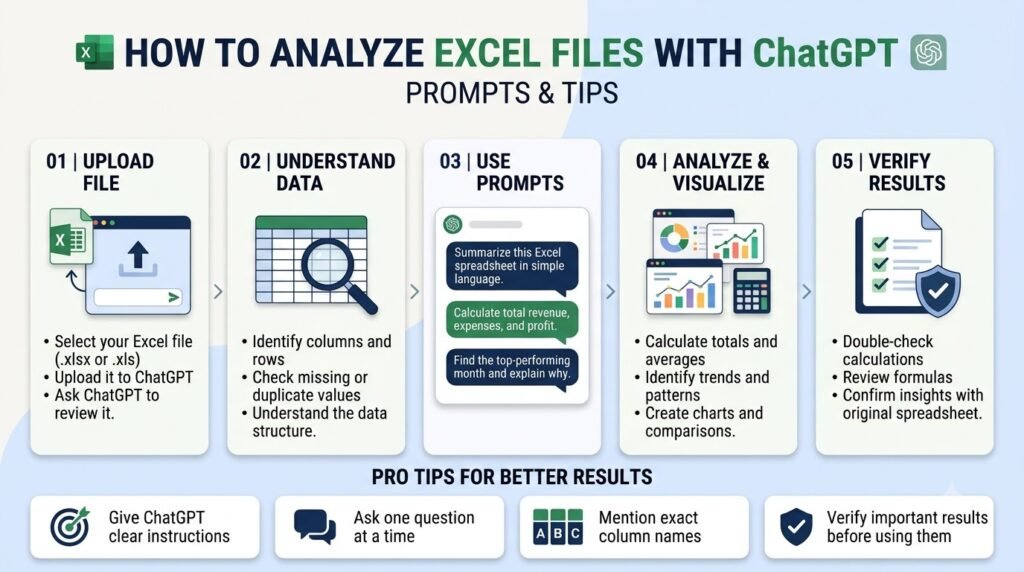
Table of Contents
What Can ChatGPT Help You Understand in an Excel Workbook?
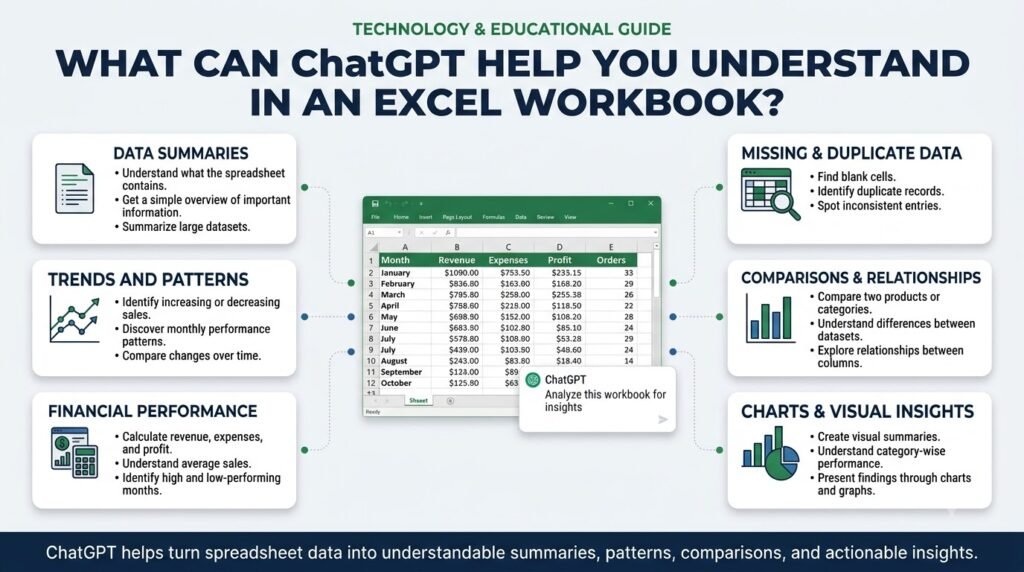
ChatGPT can help with more than summarizing spreadsheet data. Depending on the file structure and the tools available in your ChatGPT experience, you can ask it to:
- Explain what a formula does in simple language.
- Investigate why two totals do not match.
- Review formulas for possible inconsistencies.
- Understand how different worksheets relate to one another.
- Suggest formulas for a particular calculation.
- Identify assumptions behind a result.
- Explain an unfamiliar workbook to someone who did not create it.
Suppose we receive an excel file containing monthly sales, costs and summary data. We can see the numerical data, but are unsure how the summary has been calculated.
Rather than manually checking each formula, we can ask ChatGPT to give us an overview of the file, and to investigate certain questions.
By uploading an Excel file to ChatGPT we can ask questions about the data in the file, and get results from calculations based on code.
However, the extent to which ChatGPT can understand the file depends on the complexity of the file, and the features available within it.
You can also use AI to analyze other types of business data. For example, if you work with customer reviews and survey responses, read our guide on how to analyze customer feedback and find common complaints to understand how AI can identify recurring customer issues and feedback patterns.
ChatGPT can help you examine spreadsheet data, understand calculations, identify patterns, and work with uploaded files. Learn more about ChatGPT’s data analysis capabilities in OpenAI’s official documentation.
How to Give ChatGPT Better Instructions for Excel Analysis
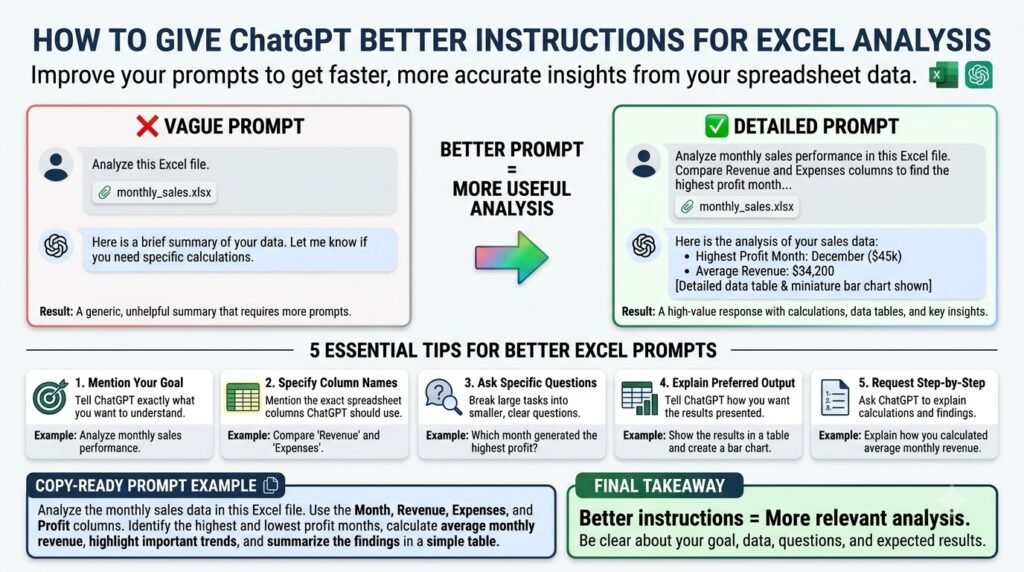
If the input is vague, the output may be too. To get a good response, specify what ChatGPT is to look at, what rules it has to follow and what format to put its answer in.
A useful prompt has five parts:
| Prompt element | What to include | Example |
| Context | Explain what the workbook is about | This is a monthly expense workbook |
| Goal | State what you want to understand | Find why the summary total is different |
| Scope | Identify the relevant sheets or columns | Check the January and February sheets |
| Rules | Explain what ChatGPT should not assume | Do not change any original values |
| Output | Choose how you want the result | Show findings in a table |
Example of a weak prompt
“Check my Excel file.”
This does not explain what to check or what kind of answer you need.
Example of a better prompt
“I have uploaded a monthly expense workbook. Review the Summary and Monthly Expenses worksheets. Check how the monthly totals are calculated, identify any differences between the summary and source sheets, and explain the possible reasons in simple language. Do not change any original values. Present the findings in a table.”
The second prompt gives ChatGPT a clear task and limits the scope of the analysis.
Before analyzing a workbook, clearly explain your goal and the results you expect. You can also follow OpenAI’s guide to analyzing data with ChatGPT for practical guidance on working with data.
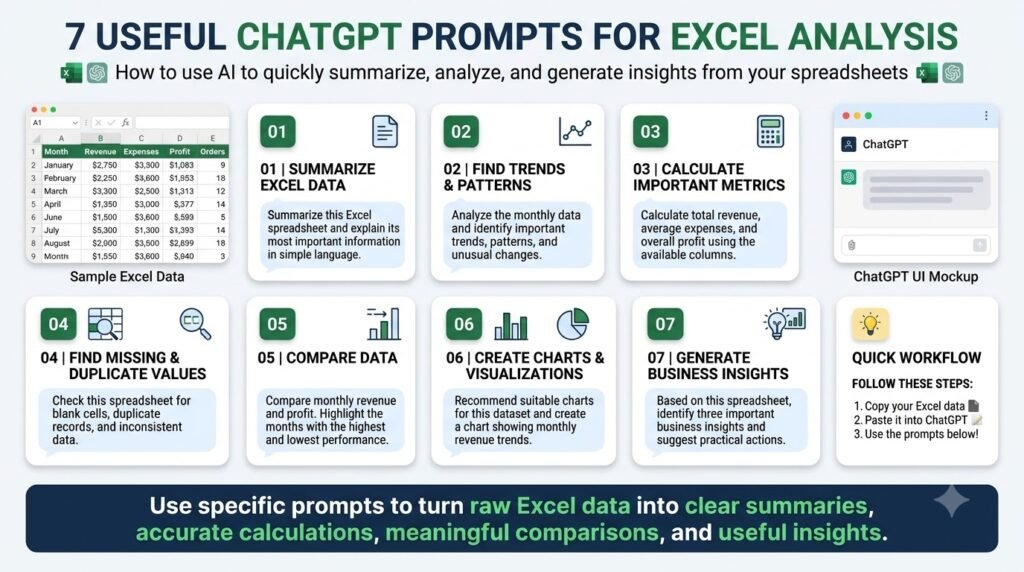
7 Useful ChatGPT Prompts for Excel Analysis
The following prompts can be used. Note that you should replace the sheet names, cell references and business information with that in your own workbook.
1. Ask ChatGPT to Explain an Excel Formula
Excel formulas can get complex quickly.
Using ChatGPT to break down formulas can help understand what each section of the formula does. This can be very useful if you are working in a workbook which has been created by someone else.
Prompt:
“Explain this Excel formula in simple language:
=IFERROR(VLOOKUP(A2,Products!A:D,4,FALSE),”Not Found”)
Break down each function, explain what the cell references mean, and describe what result the formula returns. Also explain what happens when the lookup value is not found.”
What you can learn:
- What each function does.
- Which worksheet or range the formula refers to.
- Why a particular condition is used.
- What happens when an error occurs.
- Whether the formula depends on another worksheet.
You can also ask ChatGPT to explain a formula using a small example so that a beginner can understand it.
Follow-up prompt:
“Show me a small example with sample values to demonstrate how this formula works. Explain the result one step at a time.”
2. Investigate Why Two Excel Totals Do Not Match
The summary value in the workbook may not match the value in the data.
This may be caused by missing data, incorrect ranges, filtering, duplicate data, or different conditions in formulas. Rather than asking ChatGPT to hypothesise why this may have occurred, ask it to compare the calculations.
Prompt:
“Review the Summary and Transactions worksheets in the uploaded workbook. The total shown in the Summary sheet does not match the total calculated from the Transactions sheet.
Identify the relevant total cells and formulas if they are available. Compare the calculation ranges and explain possible reasons for the difference. Do not change any values. Show the evidence for each possible issue in a table.”
Example output structure:
| Check | What to investigate |
| Calculation range | Does the summary formula include all relevant rows? |
| Missing records | Are any transactions excluded from the calculation? |
| Duplicate entries | Are records counted more than once? |
| Conditions | Are the same filters or criteria being used? |
| Formula references | Does the summary refer to the correct cells? |
This prompt helps you investigate a mismatch instead of accepting an unsupported explanation.
Important: Ask ChatGPT to identify the exact cells or formulas it can verify. If it cannot access the necessary formula details, provide the formula or relevant cell values yourself.
3. Review Excel Formulas for Possible Errors
If you have many formulas in your workbook, verifying that they are consistent can be time consuming. This can be especially the case if the same formula is used across multiple rows.
You can therefore ask ChatGPT to check for any inconsistencies. For example, if different ranges are being used in different rows, or unexpected references.
Prompt:
“Review the formulas in the Monthly Expenses worksheet. Look for formulas that appear inconsistent with the surrounding rows. Check for different cell references, missing ranges, unexpected constants, and possible formula errors. Do not assume that every different formula is incorrect. List the cell reference, formula, possible issue, and reason for reviewing it.”
Example review table:
| Cell | Formula pattern | Possible issue |
| D12 | =B12*C12 | Follows the surrounding formula pattern |
| D13 | =B13*C13 | Follows the surrounding formula pattern |
| D14 | =B14*C15 | References a different row and needs checking |
This is an example only.
Even if the formula looks incorrect, it may be correct in some rows. This may be due to special calculations, corrections or exceptions. Check the business rules.
4. Understand How Multiple Worksheets Are Connected
Many workbooks contain several worksheets that depend on one another.
For example, a business workbook might have:
- Sales: Individual sales records.
- Products: Product names, categories, and prices.
- Expenses: Monthly business expenses.
- Summary: A report that uses information from other sheets.
You can ask ChatGPT to explain how the worksheets relate to one another.
Prompt:
“Review the worksheets in this workbook and explain how they are connected. Identify any visible references between sheets, the purpose of each worksheet, and which sheets appear to provide information to the Summary sheet. Present the relationships in a table. If a relationship cannot be confirmed from the available workbook information, label it as uncertain.”
Example output structure:
| Worksheet | Possible role | Relationship to other sheets |
| Sales | Stores transaction records | May provide sales figures to Summary |
| Products | Stores product details | May provide product names or categories |
| Expenses | Stores business costs | May provide expense totals to Summary |
| Summary | Presents key results | May use information from the other sheets |
You can get an understanding of what is in the workbook.
If the workbook is complicated, use ChatGPT to examine each sheet. Even though the sheets have been listed, do not assume that ChatGPT has identified all links.
5. Ask ChatGPT to Suggest an Excel Formula
Sometimes rather than letting ChatGPT do the calculation for you, you can perform calculations using formulas within your workbook.
This could be calculating the difference between 2 columns of data, or labelling records based on certain conditions.
Prompt:
“I have an Excel table with these columns:
- A: Employee Name
- B: Target Sales
- C: Actual Sales
Suggest an Excel formula for column D that displays ‘Target Achieved’ when Actual Sales is equal to or greater than Target Sales. Otherwise, display ‘Below Target’.
Explain the formula and show where I should enter it.”
A suitable formula would be:
=IF(C2>=B2,”Target Achieved”,”Below Target”)
You can then ask ChatGPT to adapt the formula for your actual worksheet.
Follow-up prompt:
“Modify this formula so that it displays ‘No Target’ when the Target Sales cell is blank. Keep the other conditions unchanged.”
This approach is useful when you know what you want to calculate but are unsure which Excel function to use.
Always test a suggested formula on a few sample rows before applying it to the entire workbook.
6. Ask ChatGPT to Explain Assumptions Behind a Result
The numbers may be inaccurate due to incorrect assumptions.
If you are calculating a total monthly cost, there may be refunds, cancellations or one-off costs. Be aware of how these have been included in the calculation.
Prompt:
“Explain how the monthly expense total in this workbook appears to be calculated. Identify the rows, columns, formulas, and assumptions used where this information is available. Tell me whether refunds, blank values, and cancelled transactions appear to be included or excluded. Do not make assumptions when the workbook does not provide enough information.”
Ask ChatGPT to separate confirmed details from uncertain ones.
This is particularly important when preparing financial reports, performance summaries, or documents that other people will use to make decisions.
7. Ask ChatGPT to Create a Workbook Review Report
Once you have explored the formulas and relationships in your spreadsheet, you may wish to produce a brief summary.
You can ask ChatGPT to summarise the results so you can share with others.
Prompt:
“Prepare a workbook review report based on the checks performed. Include:
- A short description of the workbook.
- The purpose of each relevant worksheet.
- Formulas or references that need attention.
- Differences or inconsistencies found.
- Assumptions that could not be confirmed.
- Recommended checks before using the workbook.
Separate confirmed findings from possible issues. Do not claim that the workbook is error-free unless every relevant calculation has been verified.”
This gives you a structured review that can be shared with a colleague or used as a checklist.
Excel analysis is also useful for understanding overall business performance. If you want to go beyond reviewing spreadsheet formulas and explore business metrics, see our guide on how to use AI for business performance analysis.
It explains how AI can help evaluate revenue, expenses, sales, and other important performance indicators.
How to Refine ChatGPT’s Excel Analysis with Follow-Up Questions
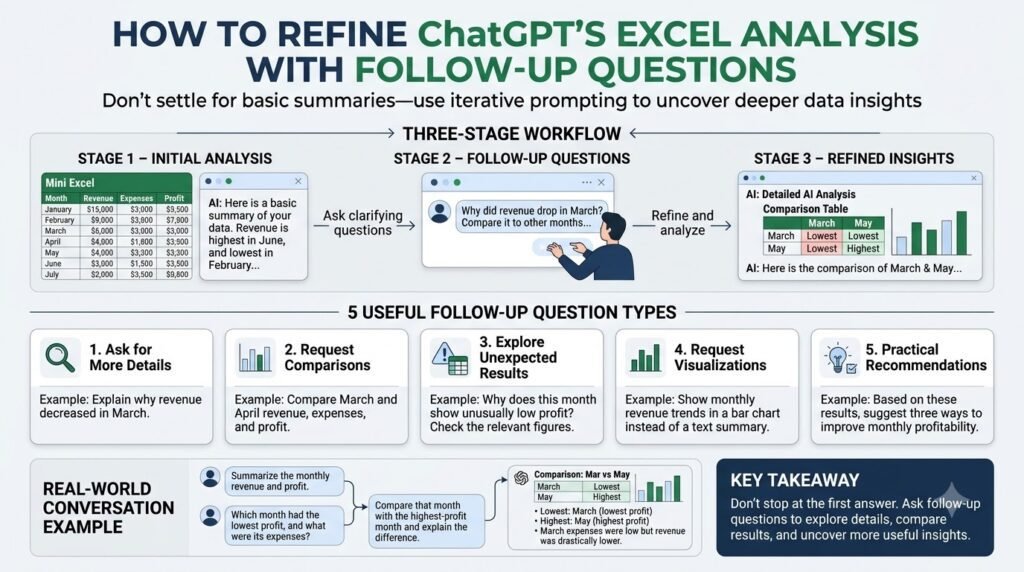
You do not have to give it one instruction. You can ask ChatGPT further questions to help you focus your investigation, or correct any assumptions, or ask for more information.
For example, if ChatGPT says that the overall summary does not include all rows, you might ask:
Rather than asking ChatGPT to do the analysis again, you can be specific with your instruction.
| Situation | Follow-up prompt |
| The explanation is unclear | “Explain this finding using simpler language and a small example.” |
| You need the exact location | “Which worksheet and cell references support this finding?” |
| You want to check a formula | “Show the original formula and explain each reference.” |
| The result uses an assumption | “Which part of this conclusion is confirmed, and which part is an assumption?” |
| You need a different format | “Present the findings in a table with issue, evidence, and suggested check.” |
| You want to narrow the review | “Only review the formulas in the Summary worksheet.” |
A Simple Example of Prompt Refinement
First prompt:
“Check why the monthly total looks incorrect.”
More specific follow-up:
“Compare the formula in the Summary sheet with the source data range in the January sheet. Identify whether the formula includes all populated rows. Show the relevant cell references and do not modify the workbook.”
Final follow-up:
“Explain how I can verify this formula manually in Excel before changing it.”
This makes the conversation more useful because each question builds on the previous answer.
ChatGPT for Excel vs. Uploading an Excel File to ChatGPT
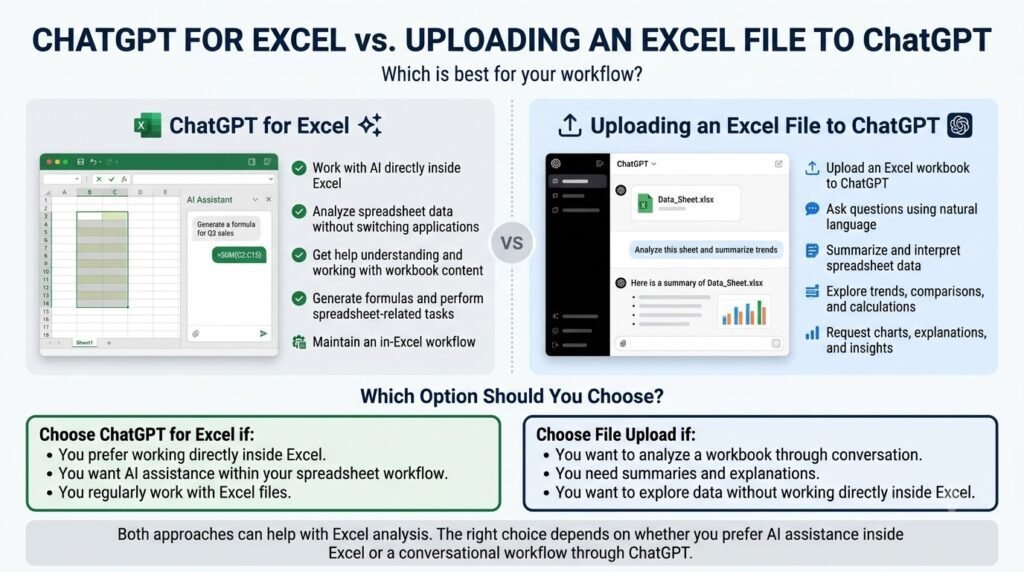
Depending on if you are having a conversation about a workbook or working within a spreadsheet, you may wish to use different methods. These are:
| Feature | Upload Excel file to ChatGPT | ChatGPT for Excel |
| Where you work | ChatGPT conversation | Excel spreadsheet sidebar |
| Main purpose | Ask questions about an uploaded workbook | Build, update, and understand a workbook within Excel |
| Typical use | Explain formulas, investigate data, review information | Work with spreadsheet content and make requested changes |
| Interaction | Ask questions and follow up in chat | Give instructions while working in the spreadsheet |
| Review | Check the analysis, formulas, and assumptions | Review formulas and changed cells before relying on updates |
Once you understand your spreadsheet data, you can also turn important business metrics into visual reports. Explore our guide on creating AI-powered business dashboards to learn how to present business data through organized dashboards and visual insights.
Use file uploads when you want to ask questions about a workbook, understand its contents, or investigate a specific issue without working directly inside Excel.
Use ChatGPT for Excel when you want a spreadsheet-native experience that can help build, update, and explain spreadsheets within Excel. Availability depends on the supported plan, workspace, and setup.
If you regularly compare responses from different AI models, a multi-model workspace such as AiZolo can also help you test the same Excel-related prompt across models and review their answers side by side.
Treat different answers as suggestions to investigate, not as independent proof that a calculation is correct.
Limitations to Know Before Using ChatGPT for Excel Analysis
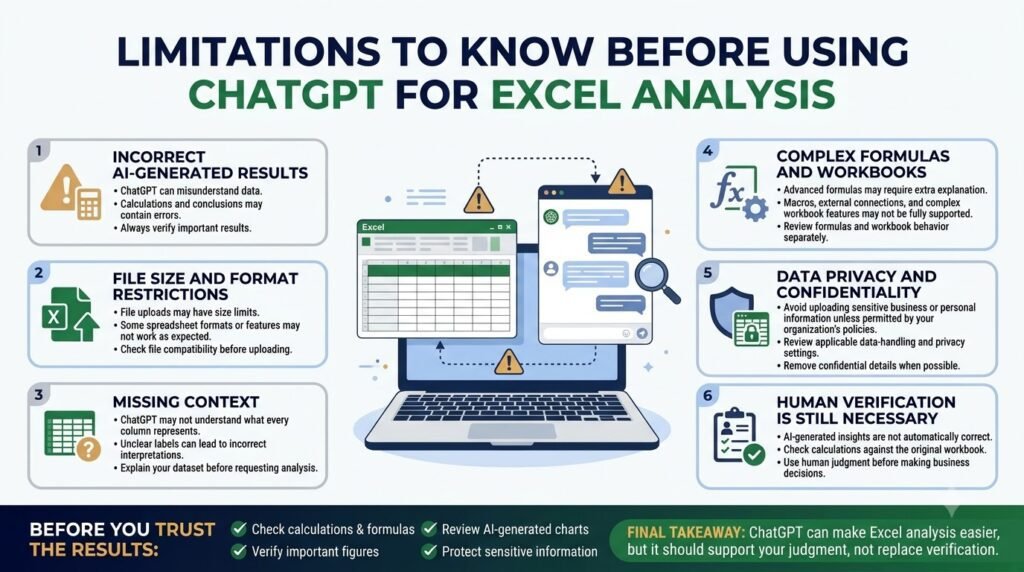
ChatGPT can make spreadsheet work easier, but it should not replace careful review.
Keep these limitations in mind:
1. Complex workbooks may be difficult to interpret.
A workbook with many sheets, unusual layouts, or complicated formulas may require you to identify the relevant sections and ask focused questions.
2. Formula access may vary.
Do not assume that ChatGPT will be able to view all formulae, named ranges, macros, pivot tables and features of the uploaded spreadsheets. If a formula is important, please include the exact formula or cells.
3. It can misunderstand your instructions.
A prompt that does not define the calculation or business rule may lead to an answer based on an incorrect assumption.
4. Suggested formulas need testing.
Formulas may be written incorrectly (incorrect ranges used), or return unexpected results if blank cells or unexpected values are included.
5. Uploaded data needs appropriate care.
Ensure that the data within the spreadsheet does not contain sensitive business, personal information or data which should not be uploaded. Adhere to any data policies in place within your organisation.
If making important business/financial decisions based upon information from ChatGPT, ensure the calculations in Excel have been checked and original data reviewed.
Frequently Asked Questions
1. Can ChatGPT analyze Excel files?
Yes. ChatGPT can work with supported Excel files and help explain data, investigate specific questions, and perform supported calculations. The interpretation of workbooks depends on file set up, available tools and account settings. Where important findings have been made, these should be checked in the original workbook.
2. Can ChatGPT explain Excel formulas?
For complex workbooks, you can use this feature to help understand the content. Ask it to highlight relevant sheets and describe the relationships. In complex workbooks consider checking individual sheets or relationships. Check key relationships manually.
3. Can ChatGPT analyze multiple Excel worksheets?
For complex workbooks, you may find this helpful. Ask it to show you the correct sheets and explain any clear relationships. If the workbook is complex, look at one sheet or relationship at a time, and manually check any key relationships.
4. Can ChatGPT find errors in Excel formulas?
ChatGPT can be used to identify potential errors within formulas. However just because the formula is not the same does not mean there is an error. Ask ChatGPT to provide evidence of this error by identifying the cell reference. Check this within excel.
5. Can ChatGPT write Excel formulas?
Yes. Give details of the calculation required, column names/cell references and ask ChatGPT to give a formula. It may also explain what the formula does and how it can be adjusted for different conditions. Make sure that the formula works on example data before applying to the entire workbook.
6. Is ChatGPT for Excel different from uploading a workbook to ChatGPT?
Yes. You can work with the workbook in a ChatGPT session. With ChatGPT for Excel you can ask questions about or update the contents of a spreadsheet. What is available and how it works depends on your account and configuration.
7. Should I trust ChatGPT’s Excel calculations?
Treat the results given by ChatGPT as indicative only. Ask ChatGPT to describe how these results have been obtained, which cells it has used and what assumptions have been made. Compare key values and formulae to those in the original workbook.
Conclusion: Analyze Excel Files with ChatGPT
Ask specific questions to get more useful answers.
Use ChatGPT to help understand formulas, investigate discrepancies, check for errors and to understand how worksheets relate. Provide it with sheet names, cell references, rules and expected outcomes.
Finally, provide a summary of what has been found. However, always make sure to double check information.
Although ChatGPT can help understand a workbook, always make sure that the final checks are based on the original data and actual formulae within the workbook.
About the Author
Anshika Verma is a content researcher and writer at AiZolo. She focuses on researching AI tools, models, and creator technologies, and creating practical guides that help readers understand and use AI in everyday work.