How to connect Chatgpt to shared Google Drive folders
How to connect Chatgpt to shared Google Drive folders in 2026Introduction
Imagine this scenario: Your team has a shared Google Drive folder overflowing with crucial project data—market research PDFs, quarterly spreadsheet reports, and collaborative strategy docs. You need insights fast. But instead of asking an AI to analyze it directly, you’re stuck in the “alt-tab shuffle”—downloading files, copying endless text, pasting into ChatGPT, hitting context limits, and losing track of versions.
Sound familiar? It’s the defining productivity bottleneck for modern professionals.
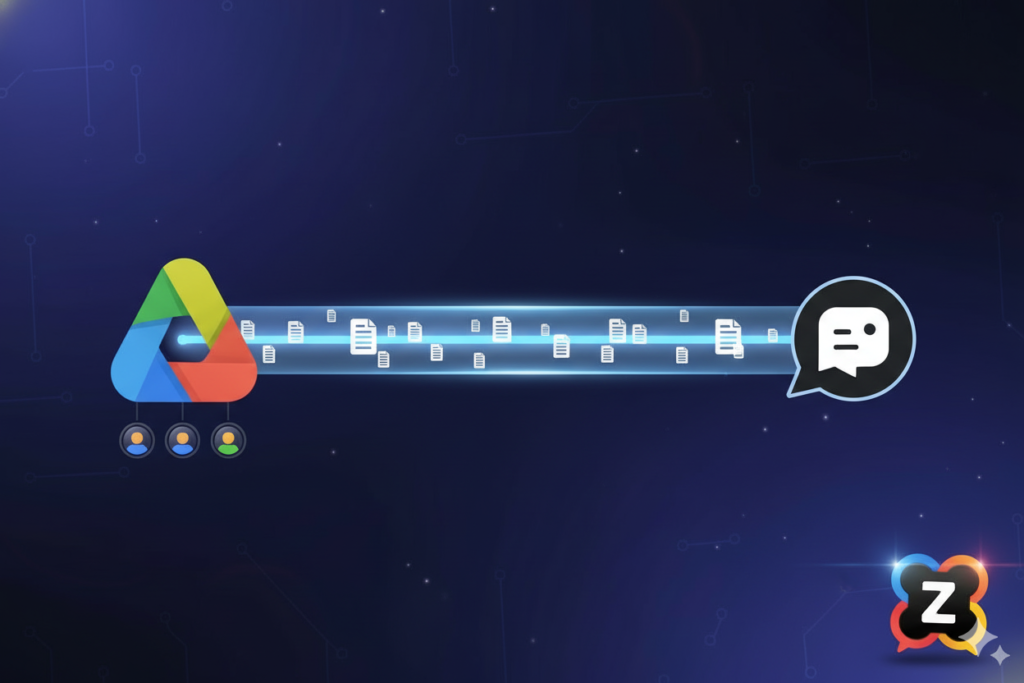
Data is useless if it’s trapped in silos. The holy grail of efficiency is figuring out how to connect ChatGPT to shared Google Drive folders directly, turning your static repository into an interactive knowledge base.
This guide will walk you through the current methods for bridging the gap between OpenAI’s powerful models and your collaborative Google Workspace. More importantly, we will show you why frantic app-switching and managing multiple expensive AI subscriptions is a broken model. We’ll introduce a smarter way to work: centralizing your AI operations—including document analysis—through AiZolo.com, the unified platform that brings ChatGPT, Claude, Gemini, and more into a single, cost-effective workspace.
Featured Snippet: What is “connecting ChatGPT to shared Google Drive folders”? Connecting ChatGPT to shared Google Drive folders refers to the process of integrating OpenAI’s language models directly with your collaborative cloud storage. This integration allows the AI to read, analyze, summarize, and extract data from documents (like PDFs, Docs, and Sheets) located within shared team folders without requiring manual downloads or copy-pasting. While standard ChatGPT has limitations here, connections are typically achieved through specific features like Custom GPTs with knowledge base uploads, third-party automation platforms like Zapier, or by using advanced, multi-model AI workspaces designed for professional workflows.
The Great Disconnect: Why Your Data Silos Are Slowing You Down
Before diving into the “how-to,” it’s crucial to understand the problem. We live in an era of incredible AI capabilities, yet most of us are using archaic methods to feed these AIs information.
If you are a researcher, marketer, or project manager, your team’s collective intelligence lives in shared Google Drive folders. When that data is disconnected from your AI tools, you face:
- Context Switching Fatigue: Constantly moving between Drive tabs and AI interfaces breaks focus.
- Version Control Nightmares: Analyzing an outdated downloaded PDF instead of the live Google Doc.
- Privacy Risks: Downloading sensitive team data to local machines to upload it elsewhere increases security surface area.
- Wasted Time: Hours lost to manual data entry instead of strategic analysis.
The goal is a seamless flow where your shared drive acts as the “long-term memory” and the AI acts as the “reasoning engine.”
Method 1: Using ChatGPT Plus and “Custom GPTs” (The Native Route)
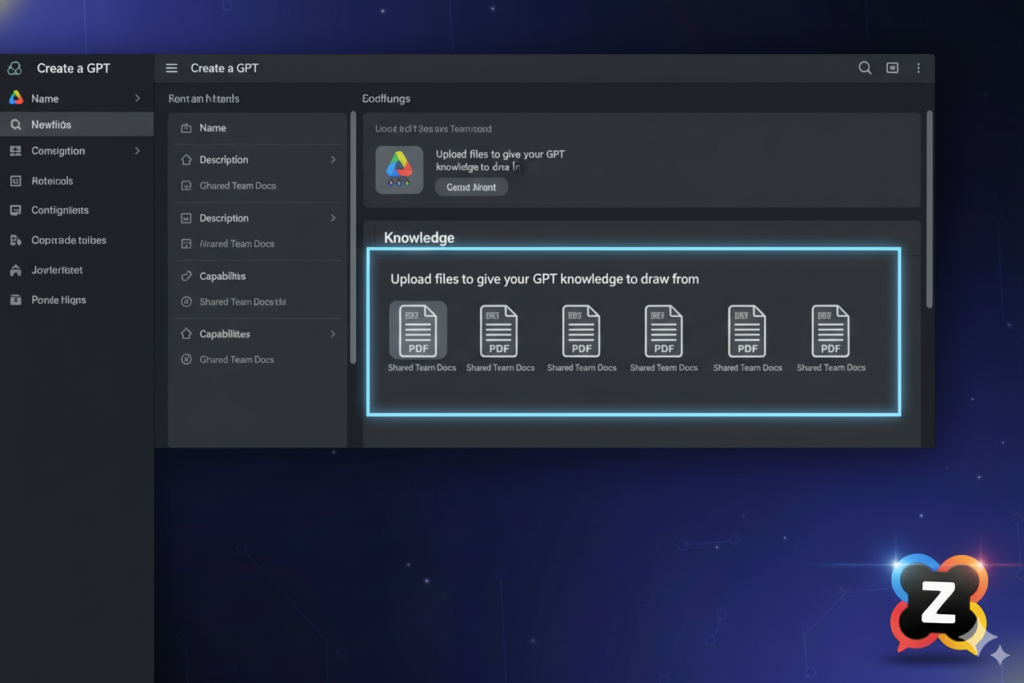
If you have a ChatGPT Plus or Enterprise subscription, OpenAI offers a semi-native solution through “Custom GPTs.” This method is useful for specific, static sets of documents but has limitations regarding truly dynamic shared folders.
How it Works
You can create a custom version of ChatGPT and upload files to its “Knowledge.”
- Go to “Explore GPTs” and click “Create.”
- In the “Configure” tab, name your GPT (e.g., “Q3 Marketing Drive Analyst”).
- Scroll down to “Knowledge” and click “Upload files.”
- You can manually select files from your Google Drive if they are synced to your computer, or download them first and upload them.
The Limitations for Shared Folders
While powerful, this method doesn’t truly solve how to connect ChatGPT to shared Google Drive folders in real-time.
- No Live Sync: If a team member updates the Google Doc five minutes later, the Custom GPT won’t know. Its knowledge is frozen at the moment of upload.
- Capacities: There are limits on the number and size of files you can upload.
- Permissions Gap: It doesn’t respect Google Drive sharing permissions; if you have access to upload it, the GPT can read it.
Method 2: Third-Party Automation (Zapier/Make)
For a more dynamic connection, many power users turn to automation platforms like Zapier or Make (formerly Integromat). These tools act as the “glue” between Google Drive’s API and OpenAI’s API.
The Basic Workflow
You can set up a “Zap” that triggers whenever a new file is added to a specific shared Google Drive folder.
- Trigger: New file in Google Drive folder.
- Action: Zapier retrieves the file content (if text-based).
- Action: Zapier sends that content to ChatGPT with a prompt (e.g., “Summarize this new document”).
- Output: The summary is emailed to you, sent to Slack, or put back into a Google Doc.
The Pros and Cons
This method approaches a real-time connection but comes with significant baggage.
- Pros: It’s automated. Once set up, it works in the background.
- Cons: It is technically complex to set up correctly, especially for permissions in shared drives. It gets expensive quickly—you pay for ChatGPT Plus, plus Zapier premium tiers for multi-step Zaps. It also often struggles with complex file types like PDFs with images.
The Superior Solution: Centralizing Your AI Workflow with AiZolo
The Superior Solution: Centralizing Your AI Workflow with AiZoloThe methods above highlight a critical issue in the current AI landscape: fragmentation. You have data in Google, chat in OpenAI, automation in Zapier, and maybe image generation in Midjourney.
You are bleeding efficiency and money. Subscribing to ChatGPT Plus ($20), Claude Pro ($20), and Gemini Advanced ($20) costs upwards of $60 a month, just to juggle different logins.
AiZolo is the answer to this fragmentation.
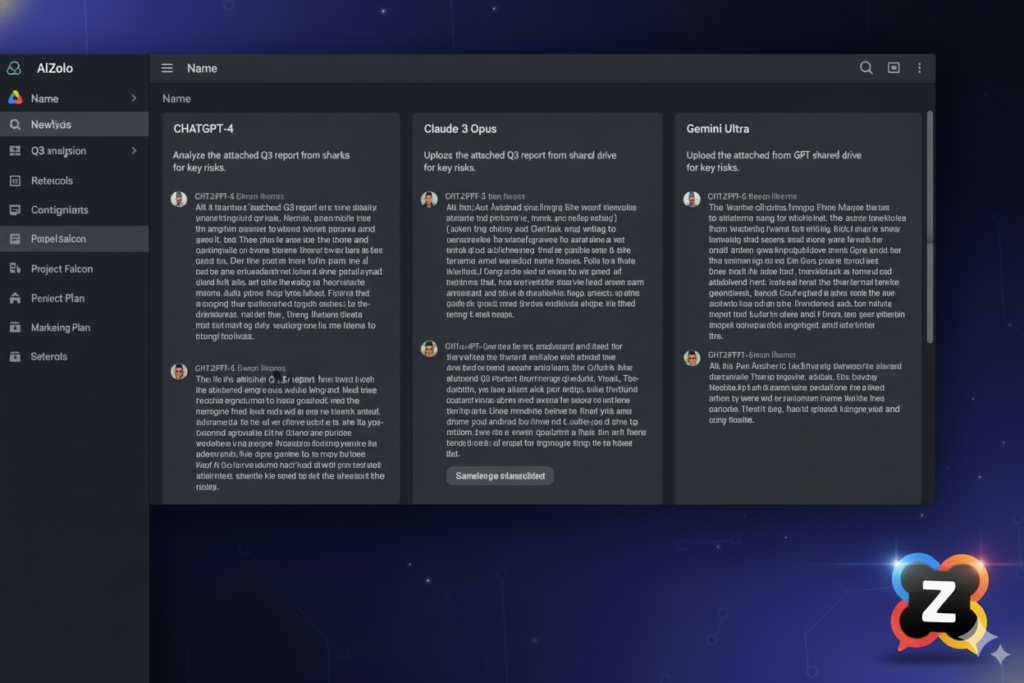
AiZolo is an all-in-one AI platform that consolidates access to premium models like ChatGPT (GPT-4), Claude 3 Opus, Gemini, and more into a single, unified workspace. While AiZolo focuses on providing the best chat environment, it is the ideal hub for processing the information you extract from your shared drives.
Why AiZolo is Better for Drive-Heavy Workflows
When you are dealing with complex data from shared Google Drive folders, you rarely need just one opinion.
- Multi-Model Comparison: Perhaps you’ve pasted a complex contract from your shared drive. In AiZolo, you can simultaneously ask GPT-4 to summarize the legal risks and Claude 3 Opus to rewrite it in plain English. You see the results side-by-side in real-time. You can’t do that in standard ChatGPT.
- Advanced Project Management: Shared drives are organized by projects. AiZolo allows you to organize your chats by client or task. You can save custom prompts designed specifically for your team’s internal document formats.
- Data Privacy and Custom API Keys: For enterprise teams concerned about data privacy in shared folders, AiZolo offers BYOK (Bring Your Own Key) support. You can use your own secure OpenAI or Anthropic API keys, giving you ultimate control over your data retention policies while benefiting from AiZolo’s superior interface.
The Financial Case: Consolidation vs. Fragmentation
If your team is trying to figure out how to connect ChatGPT to shared Google Drive folders, you are likely power users. And power users are likely overpaying for AI.
The friction of connecting Drive to ChatGPT is just one symptom of a larger problem: tool sprawl.
| Feature | Separate Subscriptions | The AiZolo Way |
| Access to Models | GPT-4 ($20), Claude 3 ($20), Gemini ($20+) | All included in one platform |
| Total Monthly Cost | $60 – $150+ / month | Starts at just $9.90 / month |
| Workspace | Fragmented tabs, different UIs | Unified, customizable interface |
| Model Comparison | Impossible (manual copy-paste) | Native, real-time side-by-side |
| Vendor Lock-in | Yes, stuck in their ecosystems | No, neutral platform |
Export to Sheets
By centralizing on AiZolo, you save 50-67% on AI subscriptions immediately. You stop paying for the brand name and start paying for utility.
Stop overpaying for fragmented AI tools.Visit AiZolo.com to consolidate your AI workflowand access all top-tier models for one low price.
Best Practices for Analyzing Shared Drive Documents with AI

Best Practices for Analyzing Shared Drive Documents with AIRegardless of how you connect—whether via manual pasting into AiZolo’s multi-model interface or using custom GPTs—the quality of your output depends on how you prepare your data.
Clean Your Data First
AI models can get confused by messy formatting in shared Google Docs. Before analysis:
- Remove excessive headers/footers.
- Ensure clear headings (H1, H2) so the AI understands document structure.
- Delete resolved comments in Docs, as these can sometimes be read as main text.
Respect Privacy and Permissions
Just because you can connect AI to a shared folder doesn’t mean you should connect everything.
- Be wary of PII (Personally Identifiable Information) in HR or finance folders.
- Ensure that the method you choose respects the “Viewer” vs. “Editor” rights of the shared drive. (Using AiZolo with your own API keys is often preferred by security-conscious teams for this reason).
Master “Document Prompting”
When asking an AI to analyze a drive document, be specific.
- Bad Prompt: “Read this.”
- Good Prompt: “Act as a senior financial analyst. Read the attached Q2 report from our shared drive. Identify the three largest variances compared to the Q1 report and suggest two reasons for the discrepancy based on the text.”
Future Trends: The Inevitable Merger of Cloud Storage and AI
Future Trends: The Inevitable Merger of Cloud Storage and AIThe difficulty in figuring out how to connect ChatGPT to shared Google Drive folders is a temporary technological hiccup. We are moving rapidly toward a future where AI is the native interface for all cloud storage.
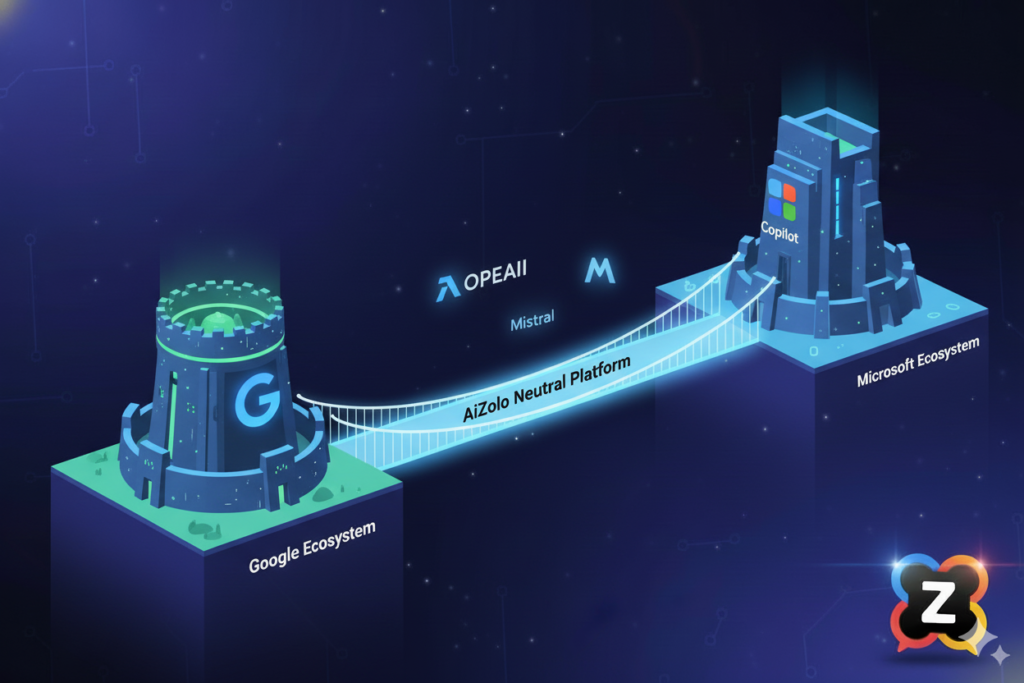
Google is already integrating Gemini directly into Workspace (Docs, Sheets, Drive). Microsoft is doing the same with Copilot in OneDrive.
However, this leads to a new problem: Ecosystem Lock-in.
If your company uses Google Drive, Google will want you to use only Gemini to analyze it. If you use OneDrive, Microsoft wants you to use only Copilot.
This is why neutral platforms like AiZolo are critical for the future.
You shouldn’t be forced to use an AI model just because it’s owned by your cloud storage provider. You should be able to use the best model for the job. Maybe Claude 3 is better at analyzing your legal PDFs in Drive, while ChatGPT is better at brainstorming marketing copy based on a shared Doc.
AiZolo ensures you always have that choice, preventing vendor lock-in and ensuring you are always using the latest, most capable models available.
Frequently Asked Questions (FAQ)
Q1: Can ChatGPT directly read files in a shared Google Drive folder without me downloading them? A: Not natively in real-time. Standard ChatGPT cannot “browse” your private Google Drive files due to security permissions. You must either use Custom GPTs (uploading the files to its knowledge base), use third-party integration tools like Zapier, or manually copy content into an advanced workspace like AiZolo.
Q2: Is it safe to connect ChatGPT to my company’s shared Google Drive? A: Security depends on the method. Uploading highly sensitive data to a standard ChatGPT chat means that data could potentially be used for training (unless you opt-out). Using enterprise plans or platforms like AiZolo with custom API keys offers significantly higher data privacy standards tailored for business use.
Q3: Can AI analyze Google Sheets within a shared folder? A: Yes, but text-based models struggle with raw spreadsheet grids. It is often better to convert the sheet to CSV format or use an AI model equipped with a code interpreter (like ChatGPT’s Advanced Data Analysis) which can execute Python code to analyze the structured data effectively.
Q4: How does AiZolo help with Google Drive documents? A: AiZolo provides the ultimate professional workspace for processing data. Once you have the content from your Drive document, AiZolo allows you to feed it simultaneously to ChatGPT, Claude, and Gemini to compare different analytical perspectives in real-time, something impossible in single-model interfaces.
Q5: Is there a free way to connect ChatGPT to Google Drive? A: True, automated “connections” usually require paid subscriptions (Zapier premium, ChatGPT Plus). The only free method is the manual one: copy-pasting content from Drive into the chat interface. Try AiZolo’s free tier to experience multi-model AI and see how a better interface improves this manual workflow.
Conclusion
Solving the challenge of how to connect ChatGPT to shared Google Drive folders is about more than just a technical integration; it’s about streamlining your entire knowledge workflow. While methods like Custom GPTs and Zapier offer partial solutions, they often introduce new complexities and costs.
Don’t let data silos slow your team down, and don’t get locked into expensive, single-model ecosystems. The future belongs to flexible, neutral platforms that adapt to your needs.
AiZolo offers the unified, cost-effective, and powerful workspace professional teams need. By centralizing access to the world’s best AI models, you can handle data from any source—including your shared drives—with unprecedented efficiency.
Ready to stop the “alt-tab shuffle” and save 67% on your AI costs?