The data in your Excel file may have some issues. There could be duplicates, empty cells or inconsistencies in product names, date formatting or numeric values.
This data can cause inaccuracies within calculations.
AI can be used to identify issues, suggest fixes, and ensure consistency in values in order to create a clean dataset in your Excel file. However, you should not allow AI to make assumptions about missing data, or remove records without checking if they are valid.
In this guide, we’ll use a fictional online store called UrbanCart and its October sales spreadsheet to demonstrate how to clean Excel data using AI. You’ll learn how to find common errors, write useful prompts, review suggested changes, and validate the cleaned file.
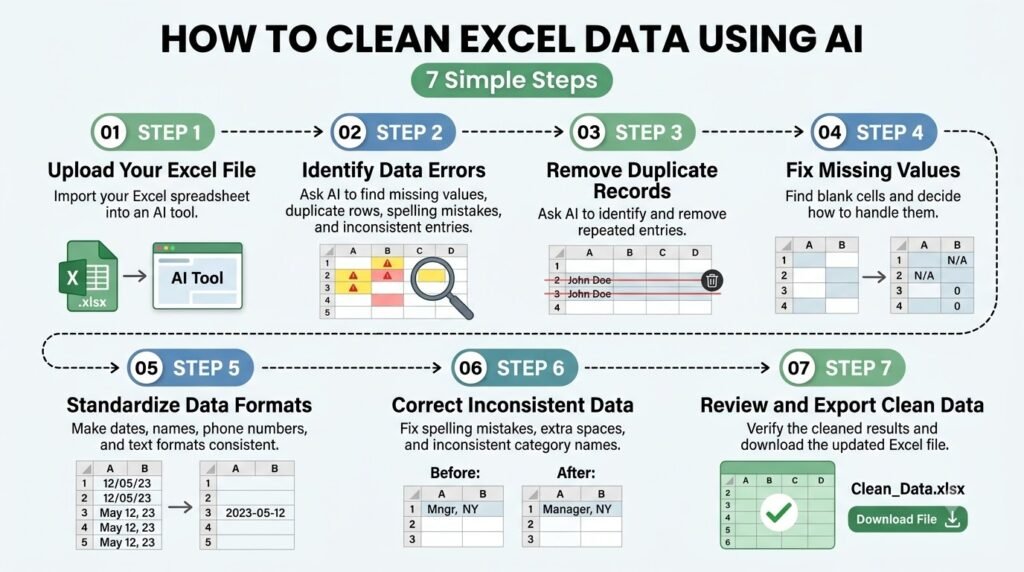
Table of Contents
What Does It Mean to Clean Excel Data Using AI?

The data in an excel sheet can be cleaned by identifying and fixing issues.
AI can be used to check the data within each column. It can detect anomalies, suggest a consistent format and suggest how to fix the data. This can be done quickly without writing complicated formulae or manually checking each row.
For example, imagine a sales spreadsheet contains these region names:
| Original value | Suggested standardized value |
| North | North |
| north | North |
| NORTH | North |
| Nroth | Review before changing |
The first three entries are probably the same data in different case. The last entry appears to be a typo. However, we should check this before correcting.
AI-assisted cleaning can help with:
- Duplicate records: Finding repeated rows or IDs.
- Missing values: Identifying blank cells that need attention.
- Inconsistent text: Standardizing spaces, capitalization, and labels.
- Date formats: Converting dates into one consistent format.
- Incorrect data types: Finding numbers stored as text.
- Possible typing errors: Highlighting values that may have been entered incorrectly.
Consistency in the dataset has been achieved. This does not mean that all entries are different. We have not automatically filled in blanks, but we have made sure that the data is consistent and retains its meaning
What You Need Before Cleaning an Excel Spreadsheet
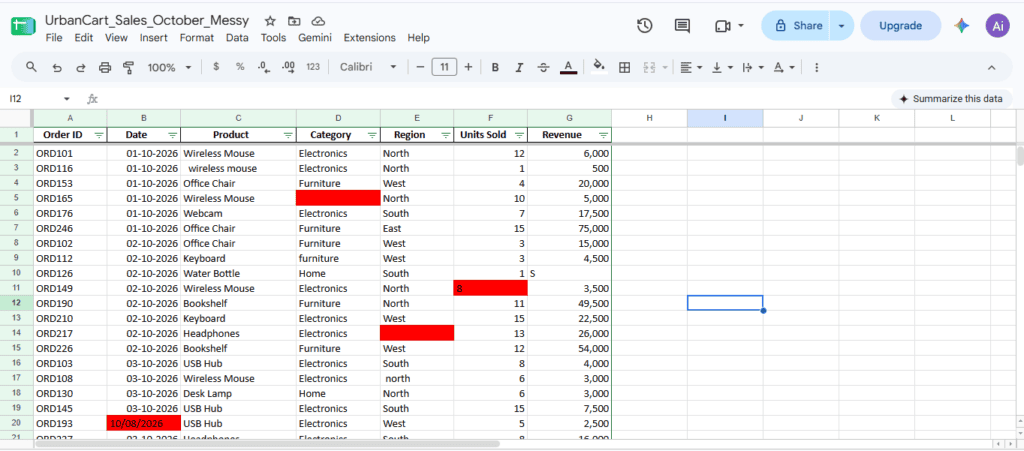
Before using AI, prepare a copy of the spreadsheet you want to clean.
For this tutorial, our UrbanCart dataset contains seven columns:
| Column | What it represents |
| Order ID | Reference number for a sales record |
| Date | Date of the transaction |
| Product | Name of the product sold |
| Category | Product category |
| Region | Sales region |
| Units Sold | Number of units sold |
| Revenue | Revenue generated by the sale |
The original example contains 150 sales records. For this cleaning tutorial, we’re using a deliberately modified practice copy with 155 data rows, including five added duplicate records and other intentional data-quality issues.
Important: Keep the original spreadsheet unchanged. Save a separate working copy so you can compare the results and recover the source data if a correction is wrong.
How to Clean Excel Data Using AI: 7 Practical Steps
Let’s clean the UrbanCart sales spreadsheet one problem at a time. You can follow the same process with sales reports, inventory lists, expense records, customer data, and other Excel files.
Step 1: Upload the Spreadsheet and Ask AI to Inspect It
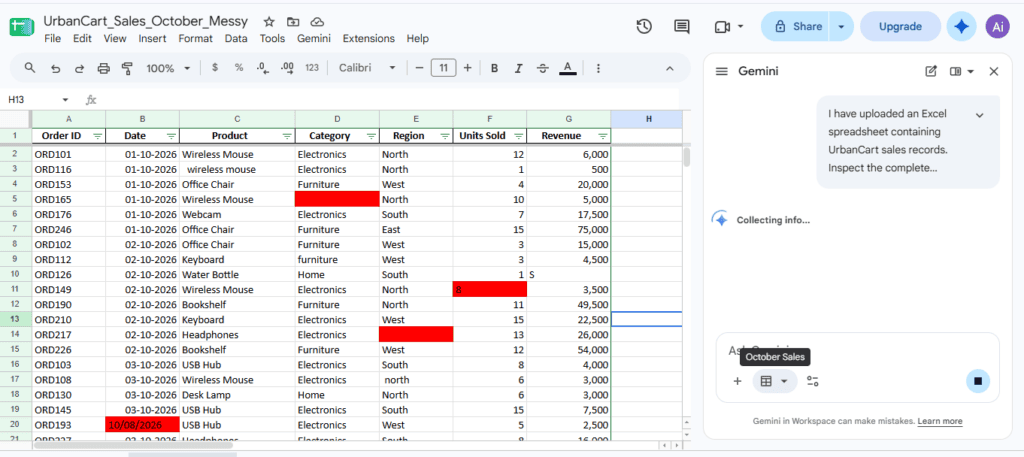
Start by uploading your Excel file to an AI tool that supports spreadsheet analysis.
Don’t immediately ask AI to clean everything. First, ask it to inspect the workbook and report what it finds.
This gives you an overview of the problems before any changes are made.
Prompt to use:
I have uploaded an Excel spreadsheet containing UrbanCart sales records. Inspect the complete worksheet without changing the original file.
List all column names, the number of data rows, and the apparent data type of each column.
Check for:
- Missing values
- Duplicate Order IDs
- Inconsistent product, category, and region names
- Extra spaces
- Different date formats
- Numbers stored as text
- Possible typing errors
Show your findings in a table. Include the affected Excel row numbers and original values. Do not correct anything yet, and do not guess missing information.
AI should return a list of issues that you can review before starting the cleaning process.
For example, the UrbanCart practice spreadsheet contains:
| Problem | Example found | Why it matters |
| Missing category | Blank Category cell | Makes category grouping incomplete |
| Missing region | Blank Region cell | Affects regional records |
| Duplicate IDs | ORD102 appears more than once | May represent repeated records |
| Extra spaces | wireless mouse | Can create inconsistent product labels |
| Different capitalization | SOUTH and South | Can split the same region into separate groups |
| Mixed date formats | 08-Oct-2026 and 2026/10/16 | Makes date handling less consistent |
| Number stored as text | 12500 in Revenue | May not behave like a numeric value |
| Typing error | Wireles Mouse | May be a misspelled product name |
This inspection step helps you understand what needs attention instead of allowing AI to make unreviewed changes.
Step 2: Find and Review Duplicate Records
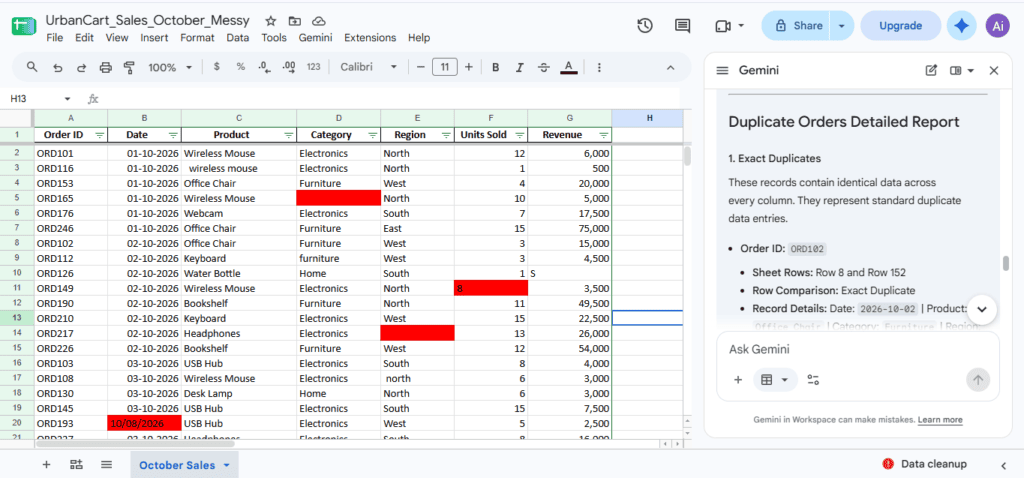
Duplicated data can occur by importing the same dataset multiple times, making accidental duplicates or merging different files.
However, not all duplicated data is an error. For example, 2 customers may have purchased the same item on the same day. In this case it may be valid to have 2 very similar sales.
In the UrbanCart spreadsheet, five Order IDs have been repeated in the modified practice copy:
| Repeated Order ID | Original row | Repeated row |
| ORD102 | 8 | 152 |
| ORD145 | 19 | 153 |
| ORD144 | 37 | 154 |
| ORD240 | 64 | 155 |
| ORD220 | 103 | 156 |
These are deliberately added duplicate records for the tutorial.
Prompt to use:
Find any duplicate order IDs.
List duplicate order IDs, which rows (in Excel) they are in, and if the entire row is a duplicate.
Produce a separate report of duplicates. Do not remove any data.
State clearly which records appear to be exact duplicates and which require manual checking.
Consider the results.
If there are duplicate order IDs but different information in the other columns, this may be multiple orders, an error in entering the order ID or a more complex data issue.
Microsoft Excel has a Remove Duplicates function. However it is recommended that you make a copy of the data first to ensure that you do not accidentally permanently delete records.
You can read Microsoft’s guide to finding and removing duplicates in Excel.
Step 3: Fix Extra Spaces, Capitalization, and Inconsistent Text
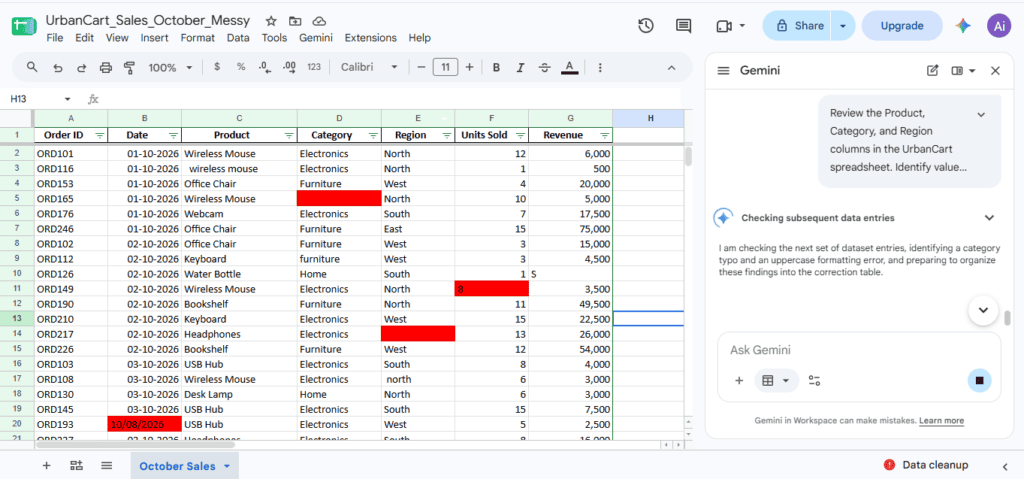
Text inconsistencies are common in spreadsheets.
For example, someone may enter a product name as Wireless Mouse, while another person types wireless mouse or Wireless Mouse.
Although these entries may refer to the same product, a spreadsheet can treat them as different text values.
The UrbanCart practice copy includes examples such as:
| Original value | Suggested correction |
| wireless mouse | Wireless Mouse |
| OFFICE CHAIR | Office Chair |
| Wireless Mouse | Wireless Mouse |
| north | North |
| SOUTH | South |
| furniture | Furniture |
Prompt to use:
Review the Product, Category, and Region columns in the UrbanCart spreadsheet.
Identify values with extra spaces, inconsistent capitalization, repeated spaces between words, or possible spelling errors.
Suggest standardized values while preserving the original meaning.
Show the original value, suggested value, and affected row number in a correction table. Do not change values when the intended correction is uncertain.
You can also use Excel’s TRIM function to remove unnecessary spaces from text.
For example:
=TRIM(C2)
Leading/trailing spaces can be removed and multiple single spaces between words can be reduced.
If you need to do more extensive cleaning, Google Sheets has some more tools for removing whitespace and duplicates. See the Google Sheets documentation.
Be very careful when doing this. If words are very similar, you should not try to correct the spelling.
Step 4: Standardize Different Date Formats
Dates can be difficult to work with when they are entered in different formats.
One row might contain 2026-10-01, while another contains 08-Oct-2026. A third might contain 2026/10/16.
Even though these may be correct date values, it can be difficult to sort, filter and perform calculations on them.
In the UrbanCart spreadsheet, mixed dates are given as:
| Original value | Suggested treatment |
| 10/08/2026 | Confirm whether this means October 8 or August 10 |
| 08-Oct-2026 | Convert to 2026-10-08 |
| 2026/10/16 | Convert to 2026-10-16 |
| Oct 24, 2026 | Convert to 2026-10-24 |
| 31-10-2026 | Convert to 2026-10-31 |
Notice that 10/08/2026 is ambiguous. It could mean October 8 or August 10, depending on the date convention.
AI should not decide this without knowing the spreadsheet’s intended date format.
Prompt to use:
Inspect the Date column in the UrbanCart spreadsheet.
Identify all different date formats and convert dates that can be interpreted confidently into YYYY-MM-DD format.
Flag ambiguous dates and invalid dates separately. Do not guess the meaning of ambiguous values.
Show the original date, suggested date, Excel row number, and reason for any date that needs manual confirmation.
After reviewing the date corrections, make sure the entire column uses one consistent date format.
For this example, YYYY-MM-DD is a useful standard because the year, month, and day are clearly separated.
Step 5: Handle Missing Values and Numbers Stored as Text
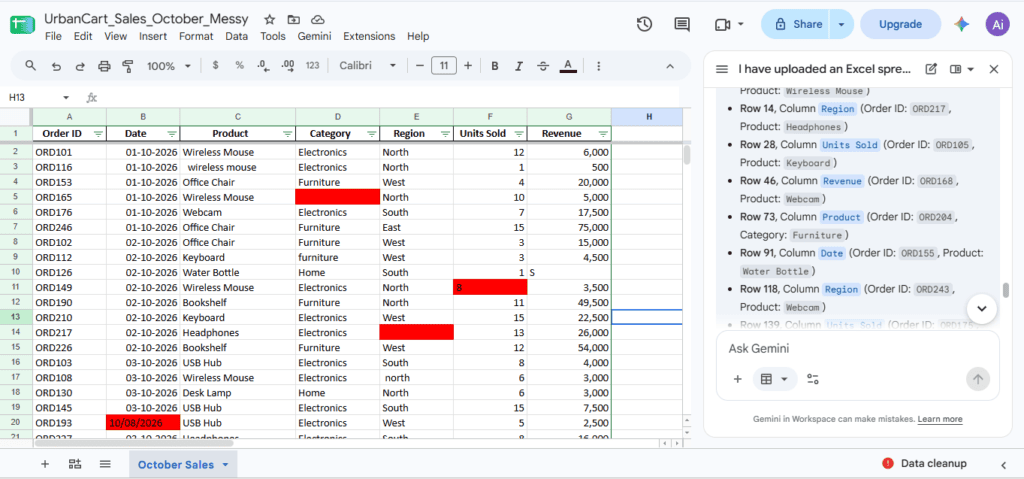
Different issues.
Missing data is different from wrong data types.
Missing data will appear as blank cells. If data is the right value, but in the wrong format (for example numbers in text form) then this is also an issue.
In the UrbanCart practice file, some cells are intentionally blank:
- Category in row 5
- Region in rows 14 and 118
- Units Sold in rows 28 and 139
- Revenue in row 46
- Product in row 73
- Date in row 91
The file also contains numeric values stored as text, such as 12500 in Revenue and 8 in Units Sold. One Units Sold entry contains the text ten, which needs manual confirmation.
Prompt to use:
Inspect the UrbanCart spreadsheet for missing values and incorrect data types.
- List every blank cell with its column name and Excel row number.
- Identify numeric values stored as text.
- Separate values that can be safely converted into numbers from values that need manual review.
- Do not fill blank cells with invented values.
- Do not convert words such as “ten” into a number unless you can clearly explain the proposed conversion and flag it for approval.
Present the results in a table.
Here is how to think about the suggested corrections:
| Problem | Recommended action |
| 12500 stored as text | Convert to a numeric value after checking the original entry |
| 8 stored as text | Convert to a numeric value |
| 6 stored as text | Remove spaces and convert if the value is valid |
| ten in Units Sold | Flag for manual confirmation |
| Blank Revenue | Check the original sales record |
| Blank Product | Find the product from a reliable source or leave it unresolved |
Never ask AI to fill every blank automatically. A missing revenue value cannot safely be calculated unless the spreadsheet provides enough reliable information to do so.
Step 6: Ask AI to Create a Cleaned Copy
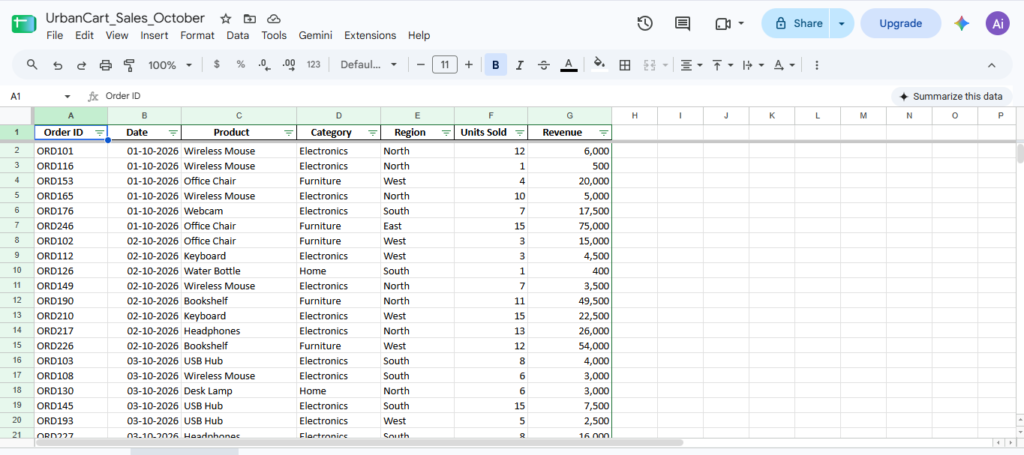
Once you have reviewed the issue report and approved the corrections, ask AI to create a separate cleaned workbook.
The cleaned file should preserve the original columns and record information while applying only the changes you approved.
Prompt to use:
Create a cleaned copy of the UrbanCart sales spreadsheet using only the corrections approved in the previous steps.
Requirements:
- Keep the same seven column headings.
- Standardize Product, Category, and Region values where the correction is confirmed.
- Use one consistent date format for dates that can be interpreted confidently.
- Convert valid numeric text values into numbers.
- Handle duplicate records only according to the approved duplicate report.
- Do not invent values for blank cells.
- Keep uncertain records in the file and mark them for review.
- Preserve the original workbook separately.
Create a new Excel file and provide a correction log showing the original value, corrected value, affected row, and reason for each change.
A correction log is important because it makes the cleaning process easier to review. It also helps another person understand what changed and why.
If you are comparing different AI suggestions for a difficult correction, AiZolo’s multi-model chat and side-by-side response comparison can help you examine how different models interpret the same cleaning instruction. Treat their suggestions as recommendations, not automatic approval.
Step 7: Validate the Cleaned Excel File
A spreadsheet is not necessarily clean just because AI has created a new file.
You should check whether the corrections were applied correctly and whether important records were preserved.
Use this final prompt:
Review the cleaned UrbanCart Excel workbook against the original file.
Check:
- Whether the column headings are unchanged.
- Whether all approved text corrections were applied.
- Whether dates use the agreed format.
- Whether valid numeric text values were converted correctly.
- Whether duplicate records were handled according to the approved list.
- Whether unresolved blank cells and uncertain values are clearly reported.
- Whether any records were removed or changed without approval.
Provide a before-and-after summary and list anything that still needs manual review. Do not claim the workbook is fully clean if unresolved issues remain.
You can also use Excel to verify important details.
| What to check | How to verify |
| Number of records | Compare the original and cleaned data-row counts |
| Duplicate IDs | Use Conditional Formatting or Remove Duplicates after review |
| Blank cells | Filter each important column for blanks |
| Numeric fields | Check whether Units Sold and Revenue are stored as numbers |
| Date values | Sort dates from oldest to newest and inspect unusual entries |
| Text consistency | Review unique Product, Category, and Region values |
Google Sheets also offers Cleanup Suggestions and Column Stats to help identify extra spaces, duplicates, inconsistent data, and unusual values. See its guide to using Smart Cleanup.
Once the remaining issues have been reviewed, save the cleaned workbook as a separate file. You can then use it for reporting or continue with the broader process of analyzing Excel and CSV data using AI.
Common Mistakes to Avoid When Cleaning Excel Data With AI
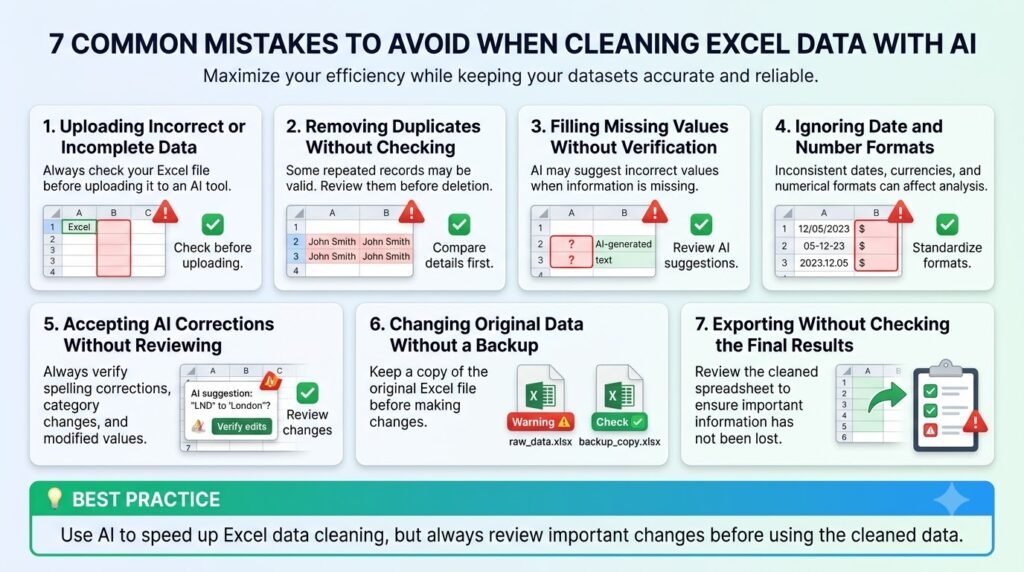
AI can speed up spreadsheet cleaning, but careless instructions can also introduce new errors.
Keep these points in mind:
1. Deleting Every Repeated Value
Repeated product names, dates, and regions are normal in sales data. A duplicate should be identified using the appropriate record key or business rule, not simply because two cells contain the same value.
2. Filling Missing Cells Without Evidence
AI may suggest a value that looks reasonable but is not supported by the source data. Keep unknown values blank or mark them for review.
3. Changing Ambiguous Dates Automatically
A date such as 10/08/2026 can mean different things in different date conventions. Confirm the intended format before converting it.
4. Treating Every Spelling Difference as an Error
USB Hub and USB-C Hub may be different products. Do not combine similar-looking labels unless the product information confirms they are the same.
5. Replacing the Original Workbook
Always keep an untouched source file and save corrections in a new workbook. This makes it easier to identify accidental changes and recover original information.
6. Skipping the Final Validation
Check row counts, duplicate IDs, missing values, date formats, and numeric fields after cleaning. A correction log also helps explain what changed.
Frequently Asked Questions
1. Can AI clean an Excel spreadsheet?
Yes. AI can inspect Excel files, identify duplicates, missing values, inconsistent text, date-format problems, and numbers stored as text. It can also suggest corrections and help create a cleaned copy. Review the proposed changes before applying them, especially when the correct value is not obvious.
2. How can I clean Excel data using ChatGPT?
Upload your Excel workbook to ChatGPT and ask it to inspect the columns, identify data-quality problems, and report affected rows. Then request specific corrections, such as standardizing text or converting valid numeric values. Keep the original file and verify the cleaned copy before using it.
3. Can AI remove duplicate rows in Excel?
AI can identify duplicate records and list the rows or IDs involved. However, it should not automatically delete every repeated row. Check whether the records are genuinely duplicated before removing them, because two valid transactions may share some of the same values.
4. How do I handle missing values when cleaning Excel data?
First, identify which cells are blank and why the information might be missing. Check the original source or another reliable record before filling them. If the correct value cannot be confirmed, leave the cell blank or mark it for review instead of asking AI to guess.
5. Can AI fix date formats in Excel?
AI can help identify different date formats and standardize dates that can be interpreted confidently. However, ambiguous entries such as 10/08/2026 need confirmation because they may represent different dates depending on the regional format.
6. Is AI better than Excel’s built-in data-cleaning tools?
They serve different purposes. Excel includes tools such as Remove Duplicates and text-cleaning functions, while AI can help explain unfamiliar problems, suggest corrections, and organize a cleaning workflow. Using both can be useful, provided you verify the results.
7. Should I upload confidential Excel files to an AI tool?
Check your organization’s data policy and the AI tool’s privacy and data-handling settings before uploading. Remove or anonymize personal, financial, or confidential information that is not required for the cleaning task.
Conclusion
Cleaning a spreadsheet is an important step before using it for reporting, calculations, or business decisions.
AI can help you identify duplicate records, standardize inconsistent text, detect missing values, review date formats, and convert valid numbers stored as text. It can also create a separate cleaned workbook and explain the changes.
The safest approach is to inspect first, correct only what you can verify, preserve the original file, and validate the final spreadsheet.
Start with a small Excel file such as the UrbanCart sales example. Use clear prompts, review each suggested correction, and keep uncertain values for manual review. This way, AI becomes a useful assistant for cleaning spreadsheet data without taking control away from you.
Author Bio
Anshika Verma is a content researcher and writer at AiZolo, focused on researching AI tools, models, and creator technologies. She creates practical guides that help readers understand AI applications and use them in everyday work.